Clio integration
Your agent checks your free times in Clio and books the appointment in your Clio calendar during the call.
What it does
When a caller wants an appointment, your agent asks which appointment type they need, checks your Clio calendars for open times, then books the time the caller picks. Callers can also call again to reschedule or cancel an appointment your agent booked.
- Open times follow your agent's business hours and your booking rules, and leave out times that are already busy in the calendars you choose.
- Each booking becomes an event in the calendar you choose, with the caller's name, phone number and answers to your questions in its description. Clio doesn't send the caller an invitation.
- Your dashboard shows each booking under Calendar, with the caller, the appointment type and how it was booked.
Connect Clio
In your dashboard, open Calendar and choose Connect calendar. This opens Calendar settings.
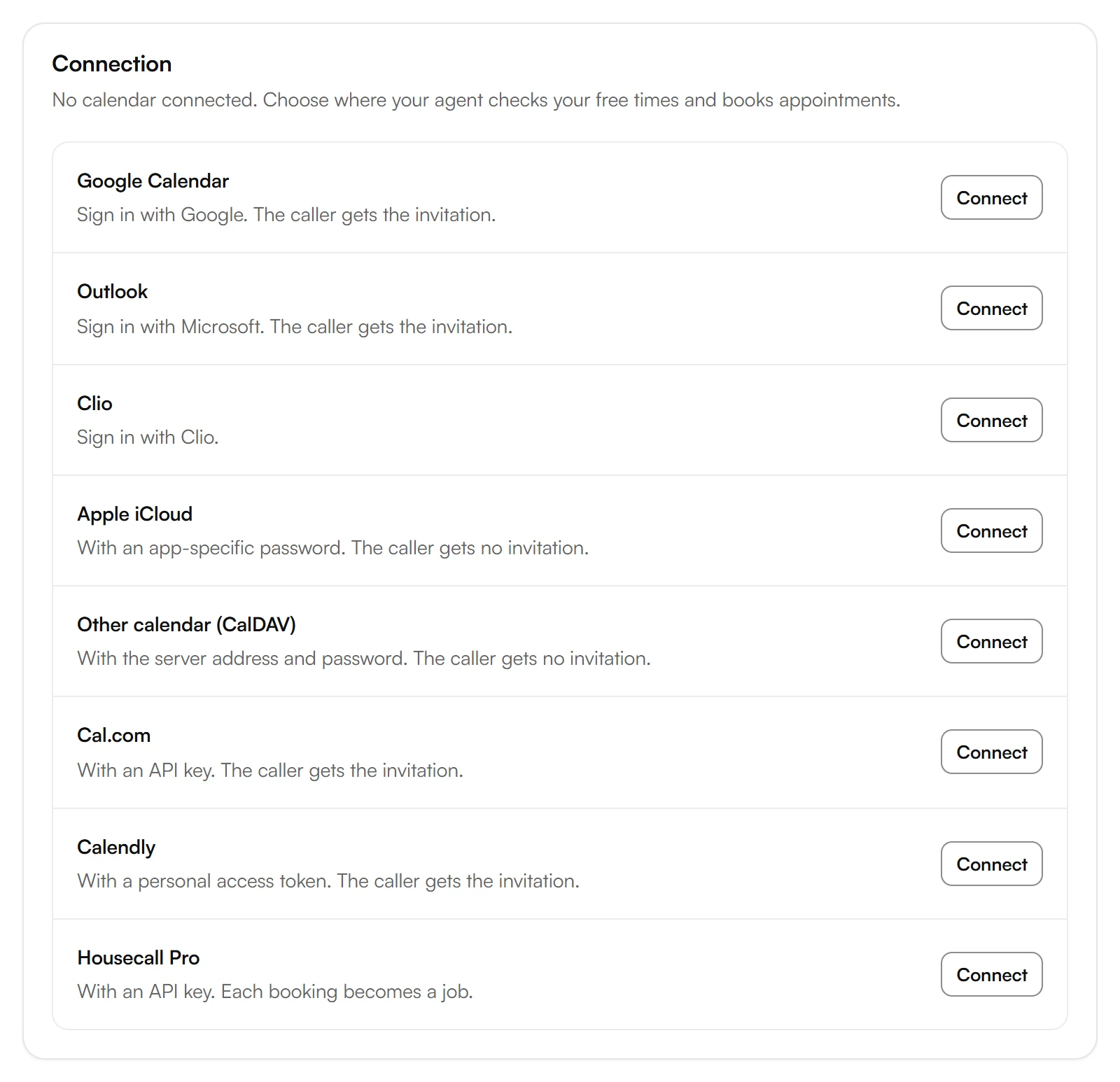
Under Connection, choose Connect next to Clio.
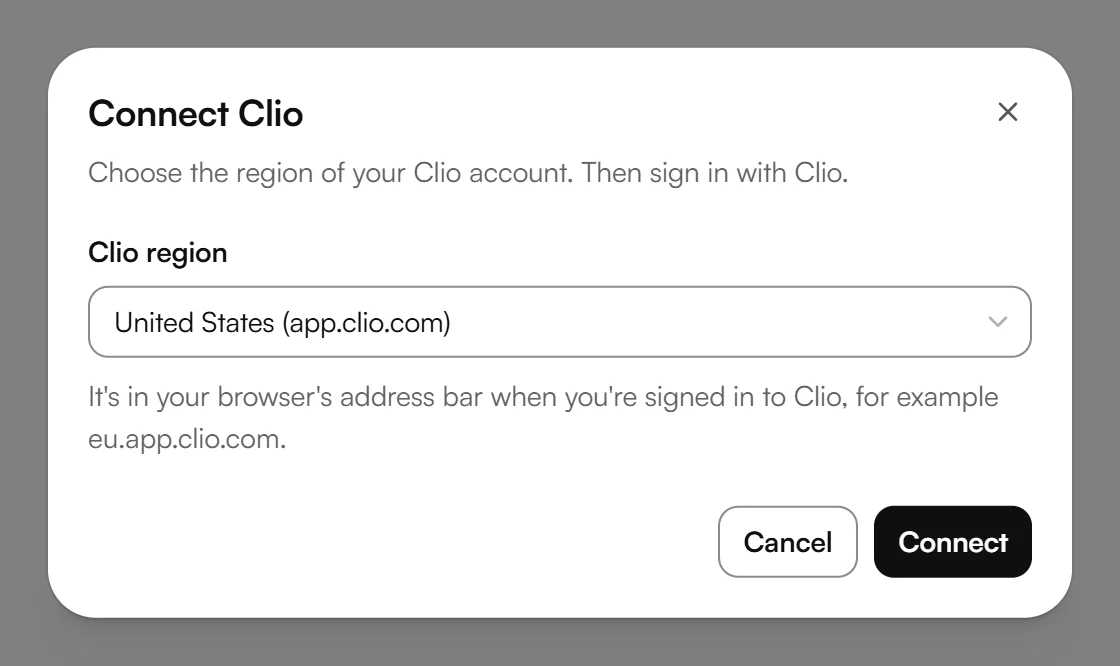
In the Connect Clio window, choose the region of your Clio account under Clio region. It's in your browser's address bar when you're signed in to Clio. For a Clio account in the US, keep United States (app.clio.com). Then choose Connect.
Sign in with Clio and allow access. If you decline, you come back to Kesru without a connection.
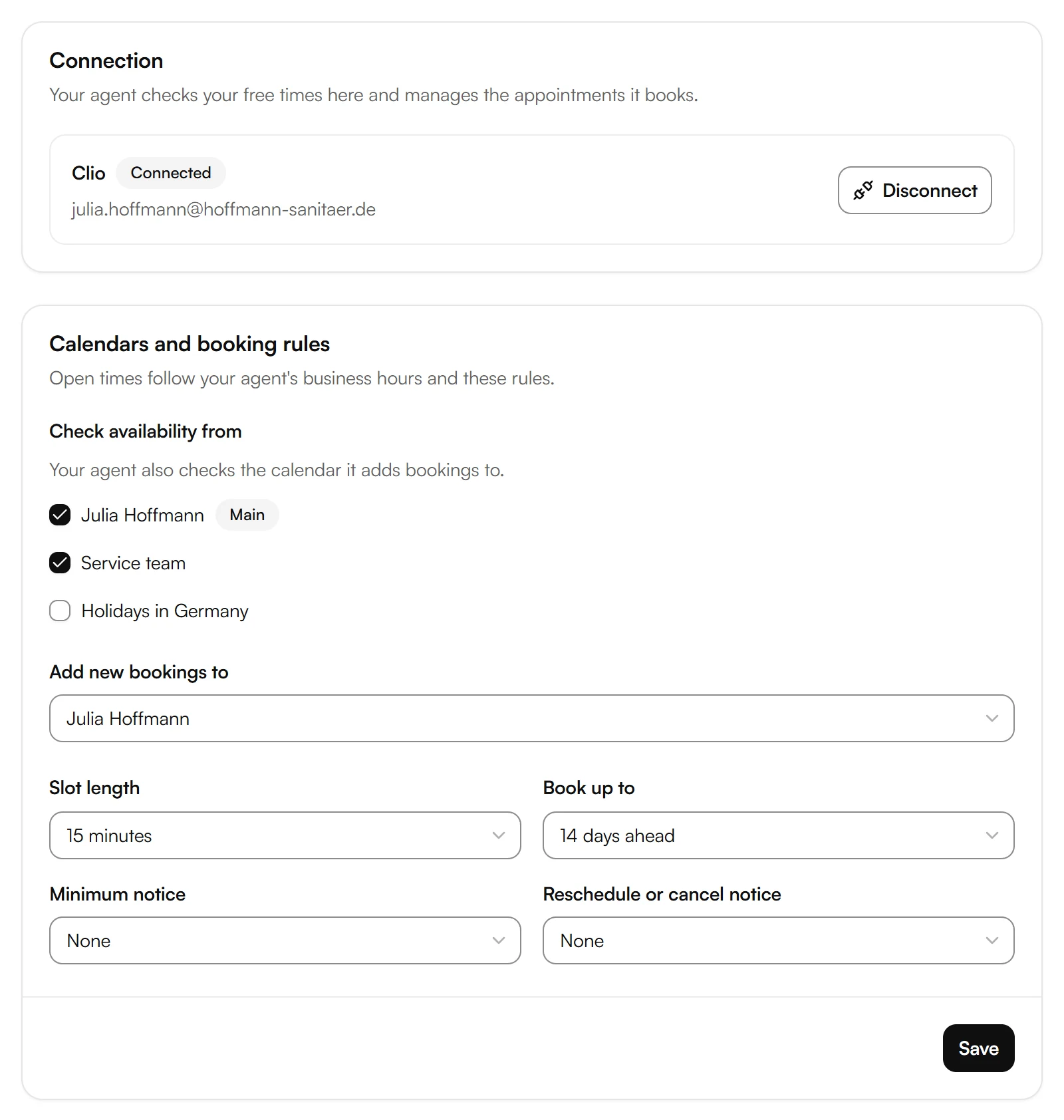
Back in your dashboard, Clio shows as Connected with your Clio account.
Choose calendars and booking rules
Under Calendars and booking rules you decide where your agent looks for open times and where it books. Open times follow your agent's business hours and these rules.
- Check availability from: the calendars your agent checks for busy times, such as your own and your team's. It always checks the calendar it adds bookings to as well.
- Add new bookings to: the calendar that gets new appointments.
- Slot length: the steps in which open times start, such as every 15 minutes.
- Book up to: how far ahead callers can book, from 7 days to a year.
- Minimum notice: how soon before an appointment callers can still book it.
- Reschedule or cancel notice: how soon before an appointment callers can still move or cancel it.
Choose Save to apply your changes.
Add appointment types
Your agent only books the appointment types you add, so add at least one. Under Appointment types, choose Add appointment type.
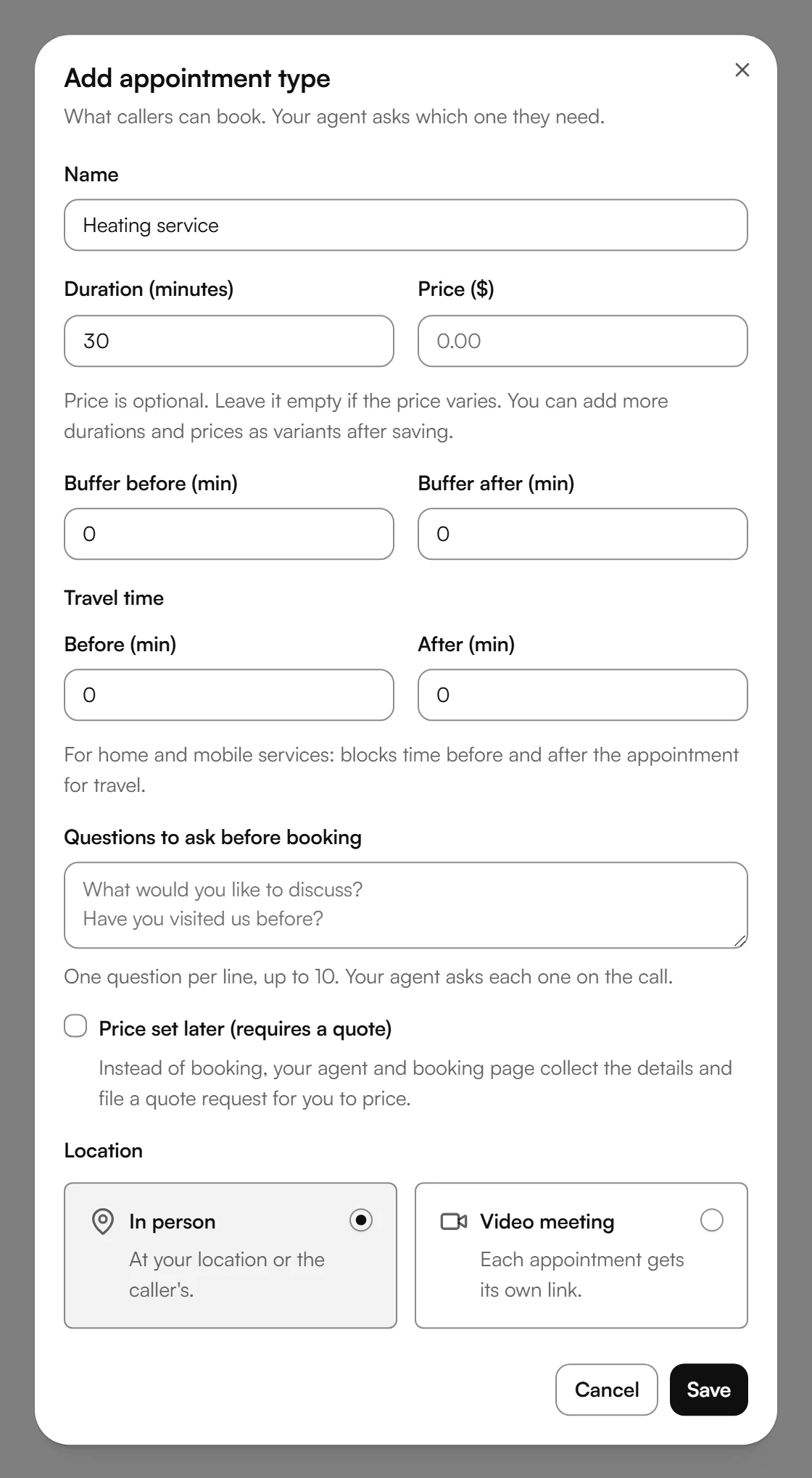
- Name and Duration (minutes): what callers book and how long it lasts. A price is optional.
- Buffer before (min) and Buffer after (min): time kept free around each appointment. For home and mobile services, Travel time blocks time for the trip.
- Questions to ask before booking: one per line, up to 10. Your agent asks each one on the call.
- Location: In person, at your location or the caller's, or Video meeting, where each appointment gets its own link.
Clio doesn't create video links, so appointments set to Video meeting are booked without a link. For a link with each appointment, connect Google Calendar or Outlook.
Example
A law firm offers a 30-minute initial consultation. A caller wants one next week. The agent suggests open times from the lawyer's Clio calendar, books the time the caller picks and puts the caller's name, phone number and answers in the description of the calendar entry.
Log calls in Clio
If you connect Clio as your CRM too, Kesru logs each of your agent's calls in Clio. It finds the caller by phone number and logs the call as a phone call under Communications, with its length, summary and a link to the call. If the contact has exactly one open matter, the call goes to that matter. Kesru adds new callers as contacts and logs chats on your website too.
In your dashboard, open CRM under Integrations. Only workspace owners and admins can connect a CRM.
Under Connection, choose Connect next to Clio. The same Connect Clio window opens as for your calendar. Choose your region, then Connect, and sign in with Clio.
You connect your calendar and your CRM separately, each with its own Clio sign-in.
Good to know
Clio shows Needs reconnecting
Clio no longer accepts the connection, for example because access was removed in your Clio account. Choose Reconnect and sign in again. Until you reconnect, your agent doesn't book in Clio.
Another Clio region
Reconnect signs you in again in the region you connected Clio with. To use another region, choose Disconnect and connect Clio again.
Disconnecting Clio
Disconnect stops your agent from checking and booking in Clio and clears the calendars you chose. Appointments already booked stay in your calendar. Your appointment types and booking rules stay in Kesru, also when you connect another calendar.
Your calendar data
Questions about your data are answered in the Privacy Policy and the Data Processing Agreement.
Related integrations
Questions about Clio?
Write to us at support@kesru.com, or start free and connect Clio in your dashboard.