Outlook email integration
Kesru labels every new email in your Outlook inbox and drafts a reply for each one that needs it, with the same knowledge as your agent on the phone. You review and send.
What it does
Kesru reads each new email in your Outlook inbox, gives it the label that fits best and, if it needs a reply, drafts one with the knowledge, instructions and guardrails of the agent you choose. The draft waits in Outlook as a reply to the sender. You review it, edit it if needed and send it yourself.
- Labels show in Outlook as colored categories on each email.
- Emails needing a follow-up get a flag with a suggested date.
- Emails from frustrated or high-priority senders are marked as important.
- Once a thread has three emails, Kesru sums it up on the Email agent page.
- New leads become contacts, emails from your contacts are logged on them, and unsubscribe requests are marked.
Kesru asks Microsoft just for the access it needs to read, label and draft. It has no permission to send email.
Connect Outlook
In your dashboard, open Email agent under Conversations.
Under Connect your inbox, choose Connect next to Outlook.
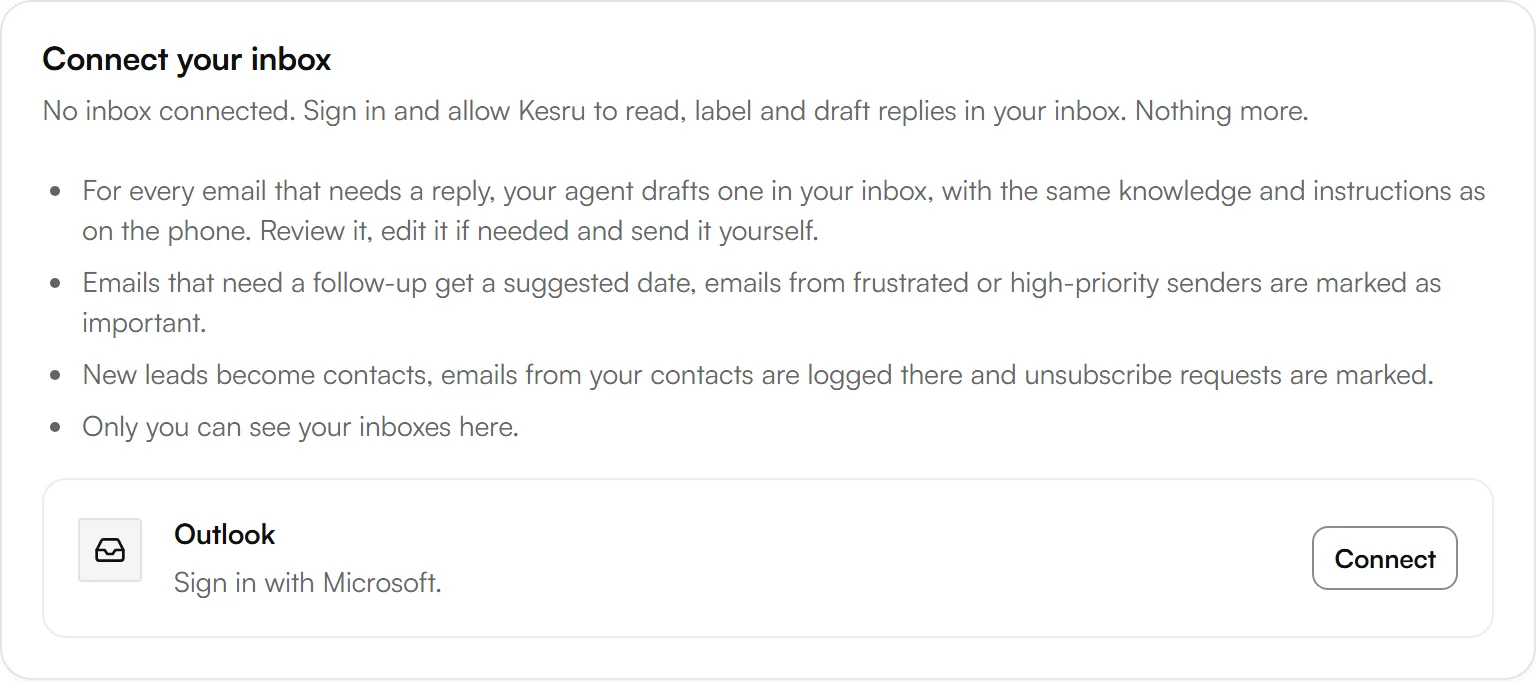
Sign in with Microsoft and allow access. Kesru asks to read and change your email, for labels, drafts and flags, to manage your categories, to see your email address and to stay connected. Sending email isn't part of it.
Back in your dashboard, Outlook shows as Connected with your email address.

Under Settings, choose the Agent whose knowledge Kesru uses and choose Save. Until you choose one, Outlook shows No agent and Kesru doesn't read your inbox.
Right after you connect, Kesru labels your 300 most recent emails. Emails that arrived before you connected get a label but no draft.
Each person connects their own inbox, and only they see it on the Email agent page. Roles that can only view the workspace can't connect an inbox.
Choose your labels
Under Labels, Kesru starts with seven labels. Turn off the ones you don't need. The change applies right away.
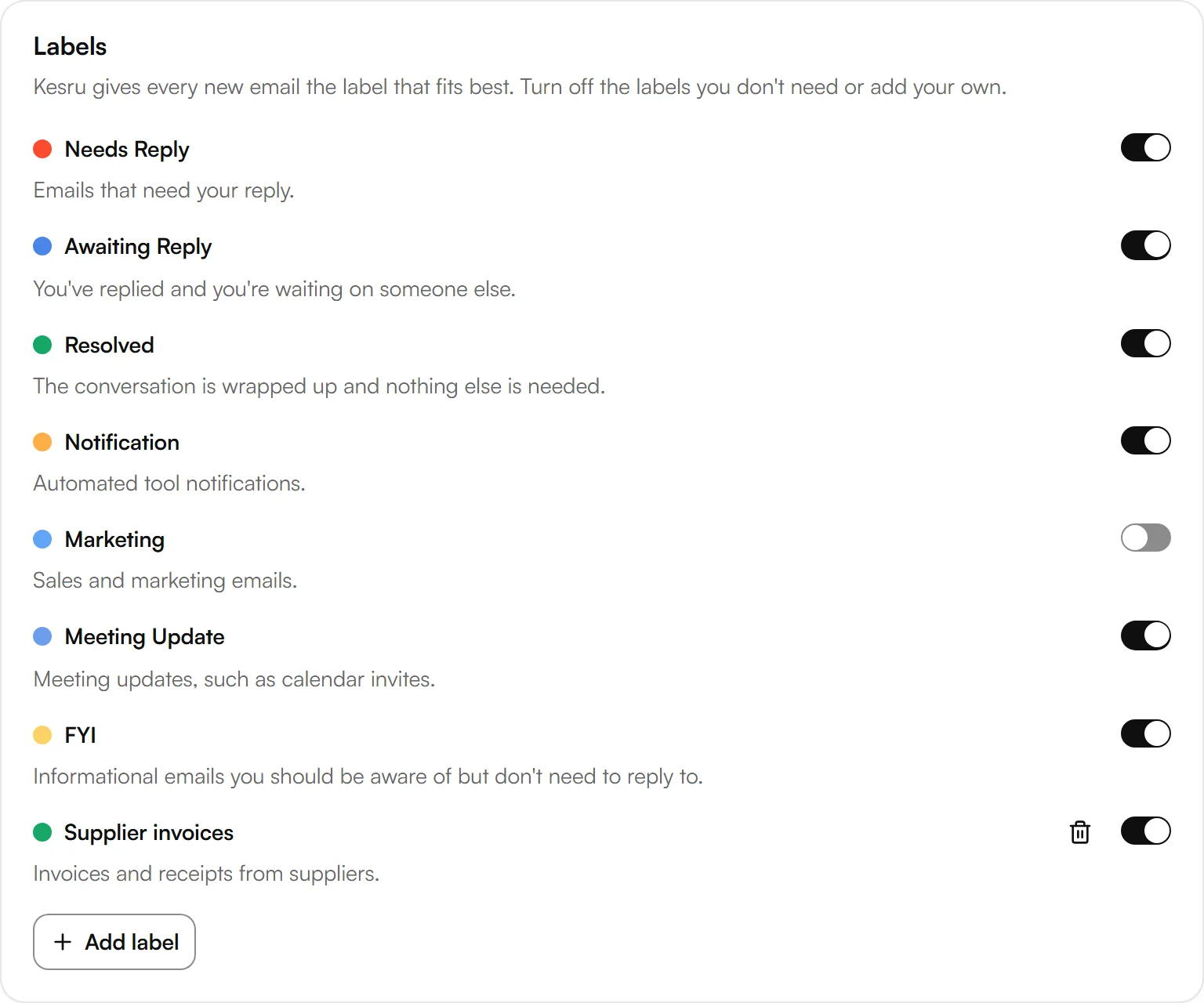
- Needs Reply: emails that need your reply. Each one gets a draft.
- Awaiting Reply: you've replied and you're waiting on someone else.
- Resolved: the conversation is wrapped up and nothing else is needed.
- Notification: automated tool notifications.
- Marketing: sales and marketing emails.
- Meeting Update: meeting updates, such as calendar invites.
- FYI: emails you should know about but don't need to reply to.
To add your own, choose Add label, give it a Name, fill in When to use it and pick a Color.
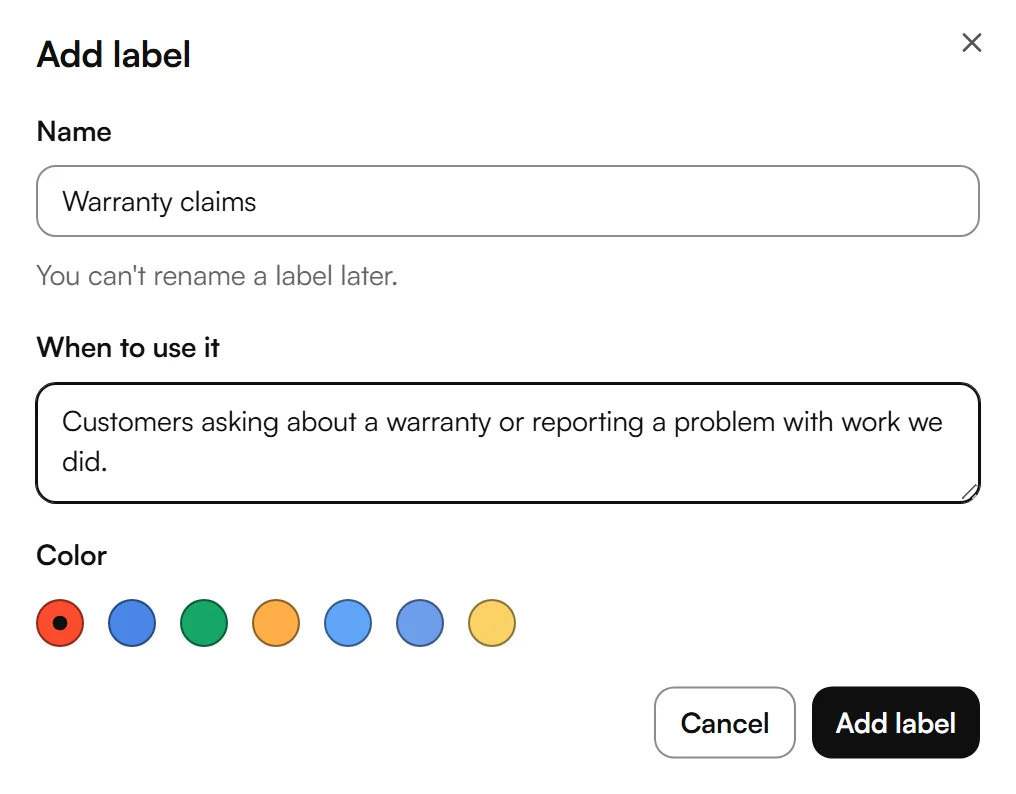
You can't rename a label later. To remove your own label, choose the bin next to it. Kesru then no longer gives it to new emails.
Settings
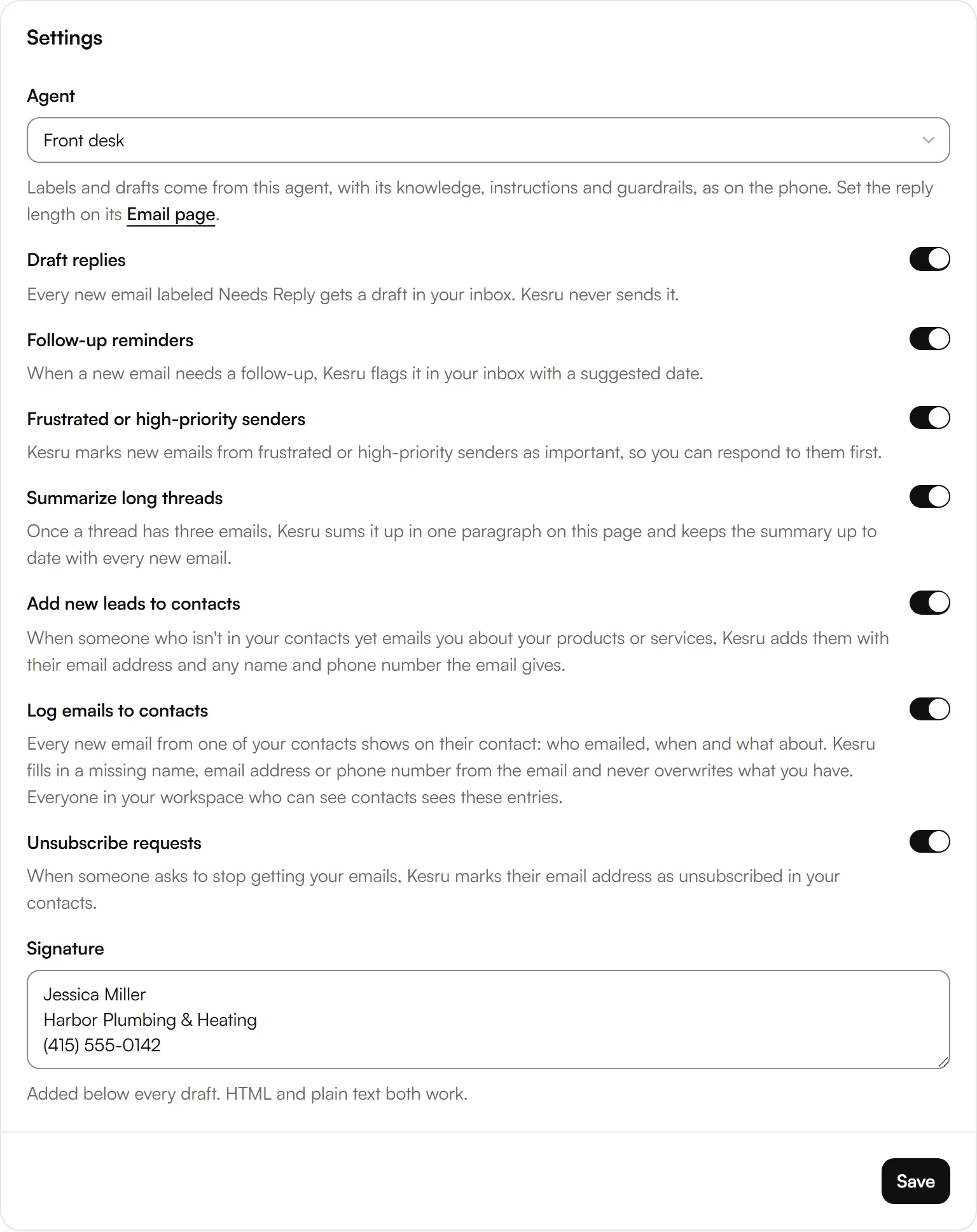
- Agent: labels and drafts come from this agent, as on the phone. Set the reply length on the agent's Email page.
- Draft replies: every new email labeled Needs Reply gets a draft in your inbox.
- Follow-up reminders: flags emails needing a follow-up, with a suggested date.
- Frustrated or high-priority senders: marks their new emails as important, so you can respond to them first.
- Summarize long threads: sums up threads with three or more emails on this page and keeps the summary up to date.
- Add new leads to contacts: adds people who email about your products or services, with their email address and any name and phone number the email gives.
- Log emails to contacts: shows each new email on the sender's contact. Kesru fills in a missing name, email address or phone number and never overwrites what you have.
- Unsubscribe requests: marks the sender's email address as unsubscribed in your contacts.
- Signature: added below every draft. HTML and plain text both work.
Choose Save to apply your changes.
Example
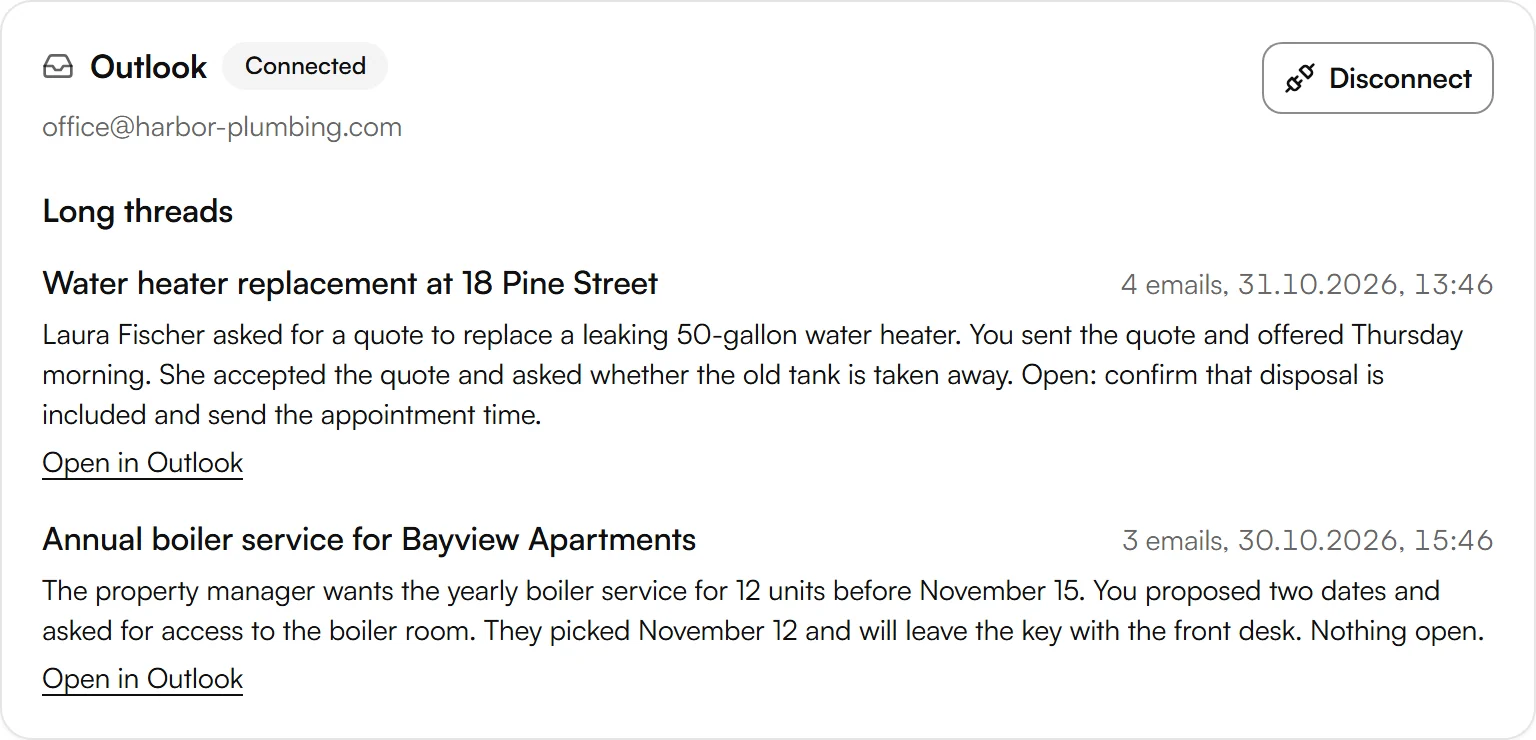
A plumbing business connects its office inbox and chooses its phone agent, Front desk. A customer emails for a quote to replace a leaking water heater. Kesru labels the email Needs Reply and drafts an answer with what the agent knows about the business. The office manager reads the draft in Outlook, adds the price and sends it.
The customer writes back twice. Once the thread has three emails, its summary shows on the Email agent page, with what is still open.
Good to know
Only your inbox
Kesru labels and drafts for emails that arrive in your Inbox. To write a draft or a summary, it also reads the earlier emails of the same thread.
Outlook shows Needs reconnecting
Microsoft no longer accepts the connection. Until you choose Reconnect and sign in again, Kesru doesn't read your inbox.
Disconnecting Outlook
Disconnect stops Kesru from reading your inbox and deletes its labels and settings in Kesru. Labels and drafts in your inbox stay, and so do emails logged to your contacts and unsubscribe requests.
Your data
How Kesru handles the data of your workspace is described in the Privacy Policy.
Related integrations
Questions about Outlook?
Write to us at support@kesru.com, or start free and connect Outlook in your dashboard.