
Cal.com integration
Your agent books your Cal.com event types right in the call, using the availability you set in Cal.com.
What it does
When a caller wants an appointment, your agent asks which event type they need, checks Cal.com for open times, then books the time the caller picks. Callers can also call again to reschedule or cancel a booking.
- Kesru reads and books in Cal.com directly and stores no copy of your calendar.
- The confirmation and calendar invitation come from Cal.com, depending on your event type.
Connect Cal.com
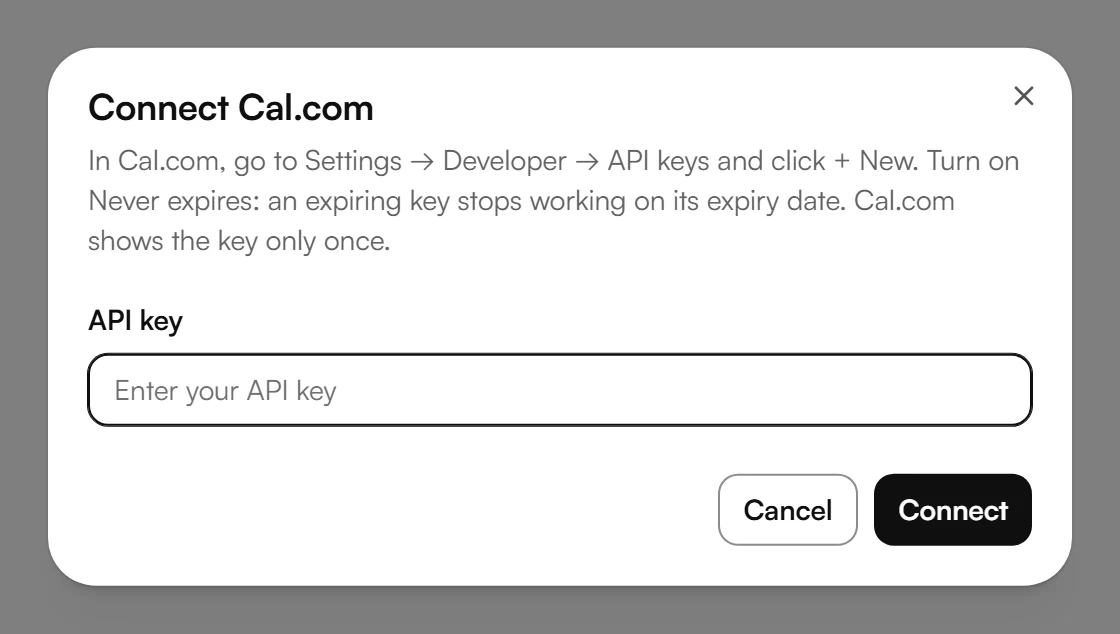
Open Settings → Developer → API keys in Cal.com and click “+ New”. Turn on “Never expires”, because an expiring key stops working on its expiry date. Cal.com shows the key only once.
In your dashboard, open Calendar and choose Connect calendar. This opens Calendar settings.
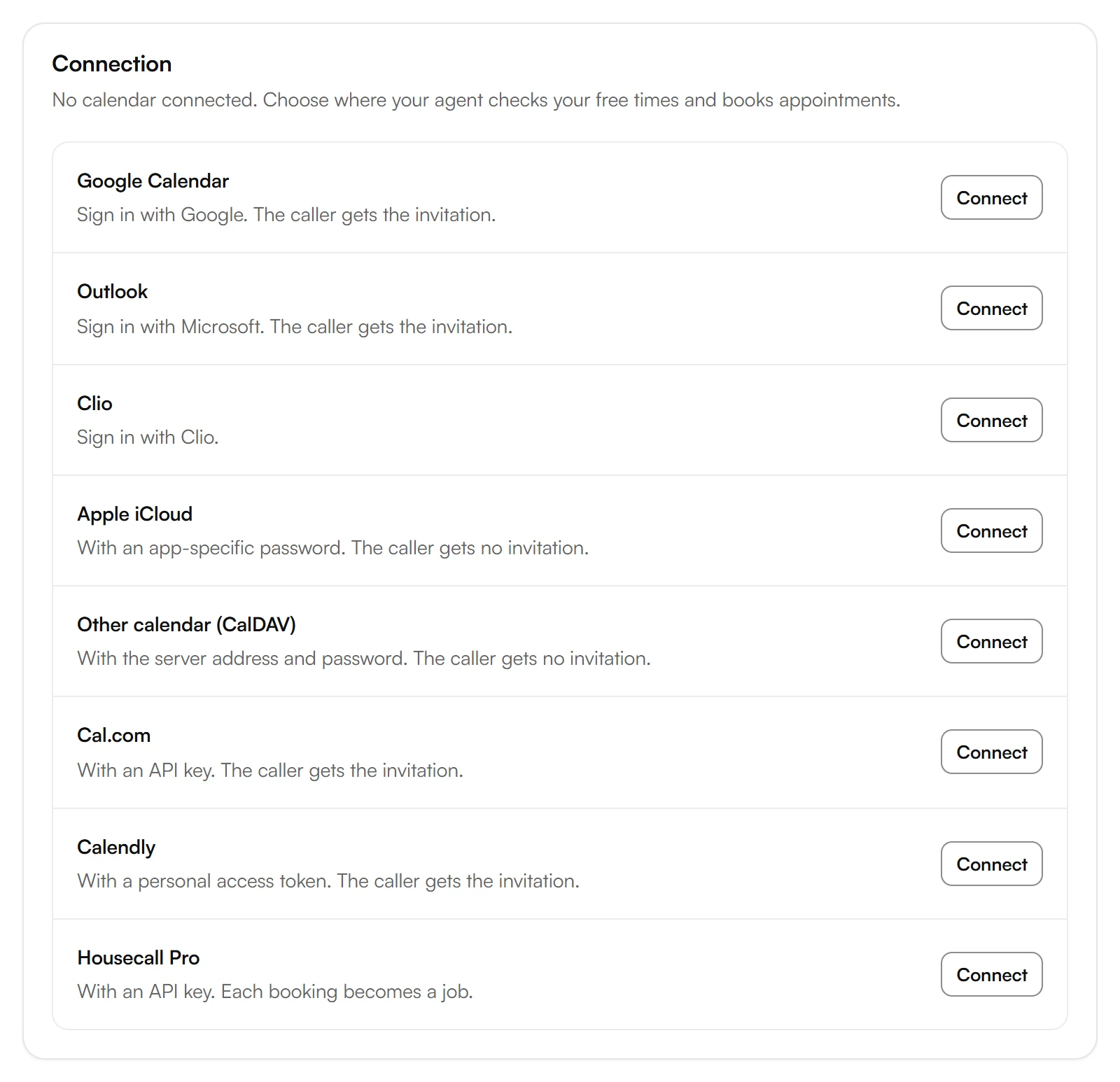
Under Connection, choose Connect next to Cal.com.
Paste the key into API key and choose Connect.
Add event types
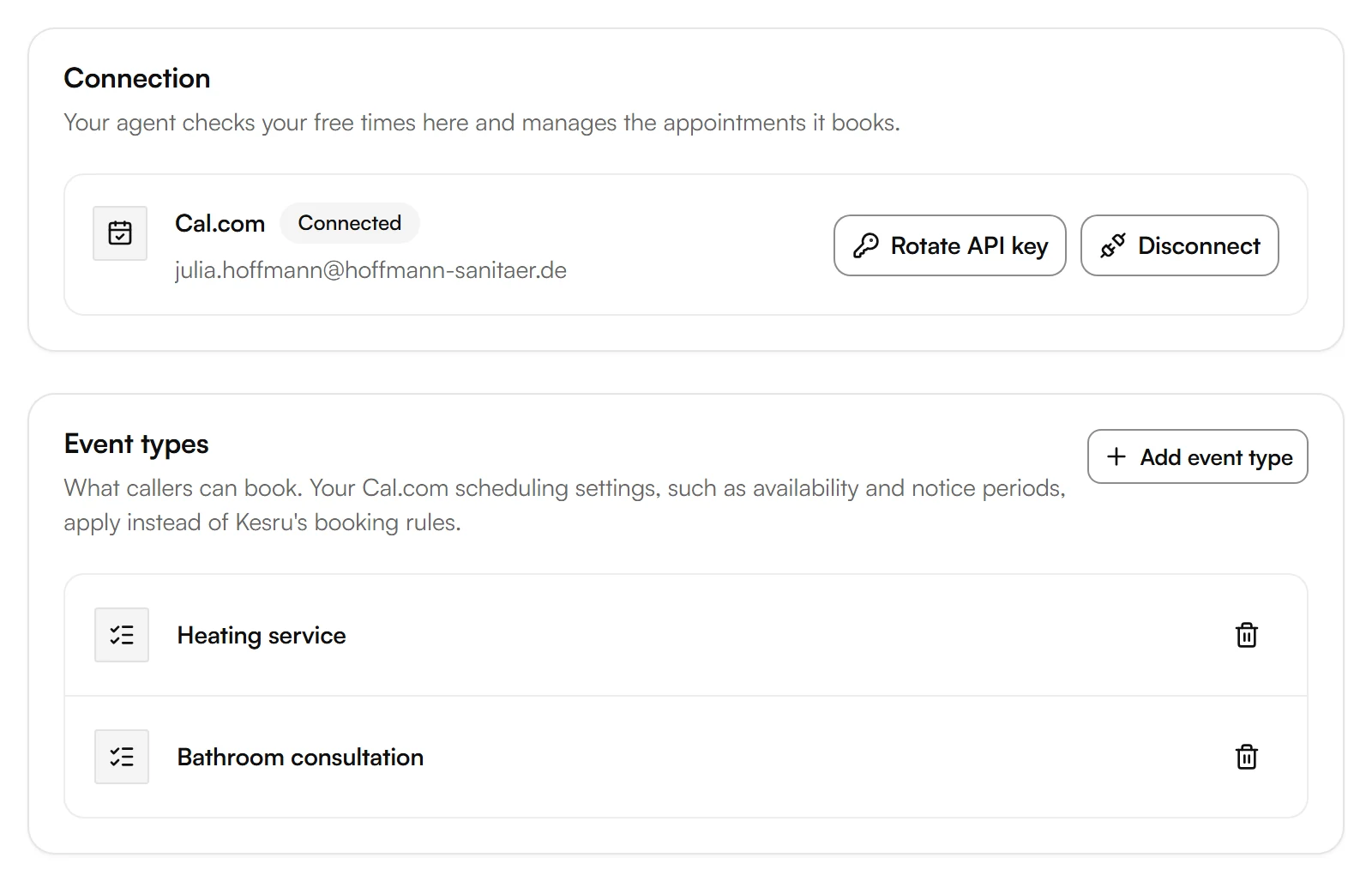
Your agent books only the event types you add. Your Cal.com scheduling settings, such as availability and notice periods, apply instead of Kesru's booking rules.
Under Event types, choose Add event type.
Enter the Link ID or event type ID: open the link in Cal.com and copy the part of the address after /links/, up to any ?. A numeric event type ID works too, but not the full URL or the link's slug.
Example
A plumbing business offers a heating service and a bathroom consultation as Cal.com event types. A caller asks for Tuesday morning. The agent offers the open times Cal.com reports, books the time the caller picks, and Cal.com confirms it.
Good to know
Bookings are in Cal.com
Cal.com manages availability and bookings. Under Calendar, your dashboard links to Cal.com, where you see and change appointments.
Replacing the key
If you create a new key in Cal.com, choose Rotate API key and enter the new one.
Disconnecting Cal.com
Disconnect stops your agent from checking and booking in Cal.com. Bookings already made stay in Cal.com. Kesru removes the event types you added, but they stay in Cal.com. Your appointment types and booking rules stay in Kesru.
Your data
What Kesru stores and reads from your calendar is described in the Privacy Policy.
Related integrations
Questions about Cal.com?
Write to us at support@kesru.com, or start free and connect Cal.com in your dashboard.