Microsoft Dynamics 365 integration
Kesru logs each call your agent takes as a phone call activity on the right contact in Microsoft Dynamics 365, with its summary and a link back to the call. New callers become new contacts.
What it does
After every call, Kesru looks the caller up by phone number among the active contacts in your Dynamics 365 environment and logs the call on each match. New callers are added as contacts. Kesru fills in a missing name but never overwrites what you already have.
Connect Microsoft Dynamics 365
In your dashboard, open CRM under Integrations. Only workspace owners and admins can connect a CRM.
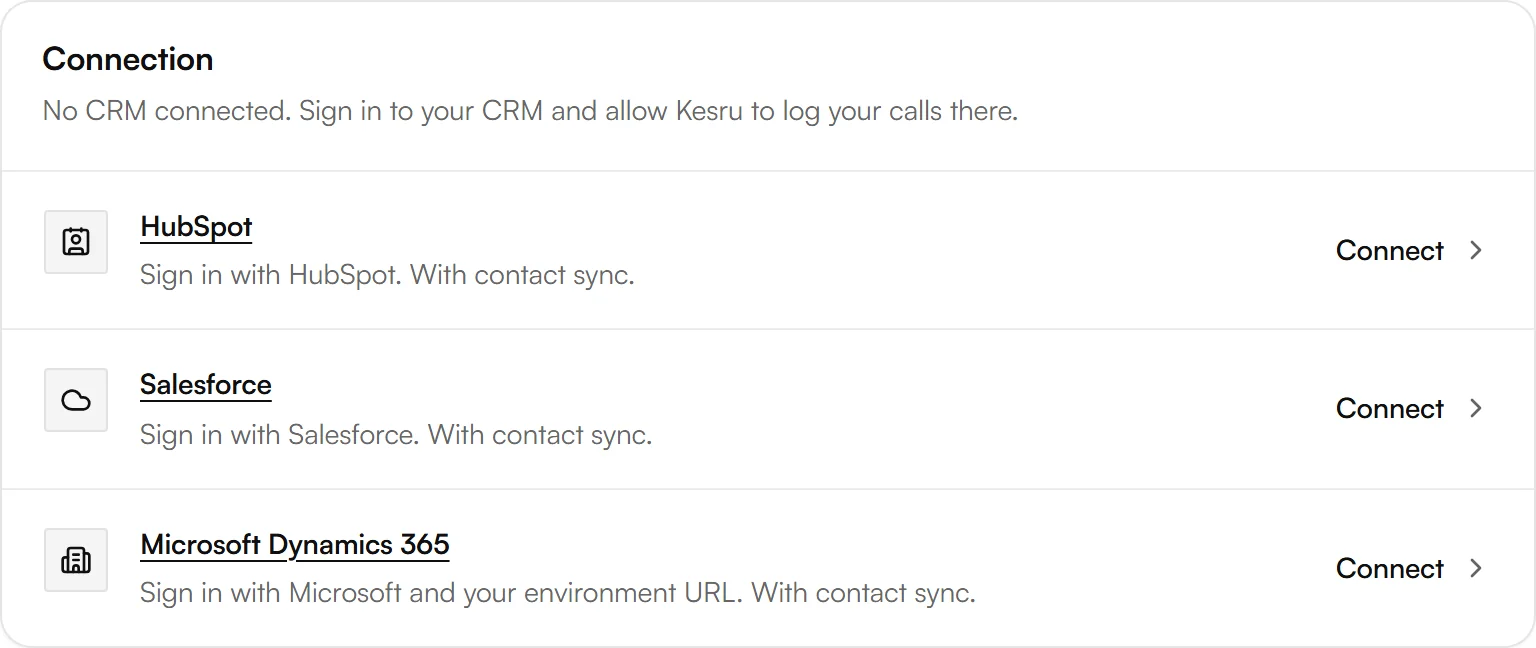
Under Connection, Kesru lists every CRM it can connect. Choose Microsoft Dynamics 365.
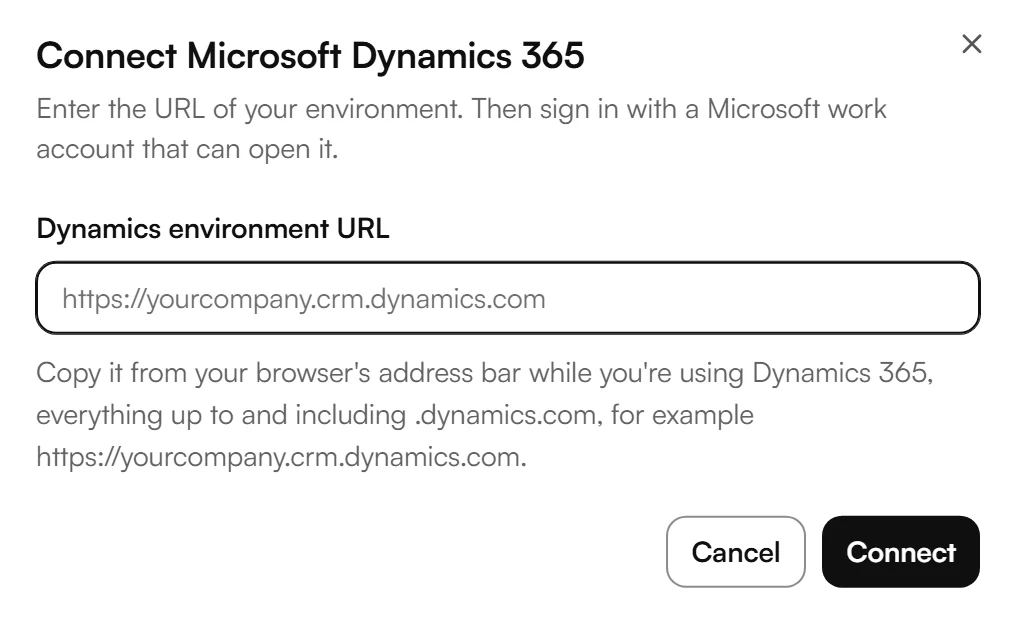
Enter your Dynamics environment URL. It's the address your browser shows while you're in Dynamics 365, everything up to and including .dynamics.com. Then choose Connect.
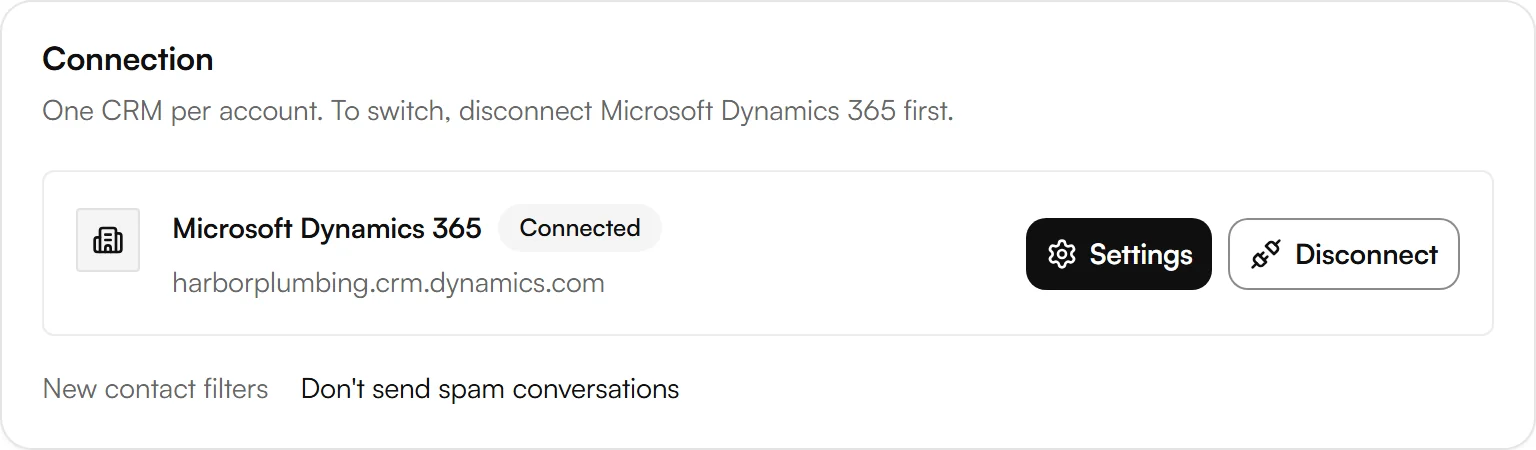
Choose a Microsoft work account that can open this environment, sign in and allow access. Back in your dashboard, Microsoft Dynamics 365 shows as Connected.
Choose which callers become contacts
Next to Microsoft Dynamics 365, choose Settings. Under New contact filters, pick the conversations that shouldn't create a new contact in Microsoft Dynamics 365, then choose Save.
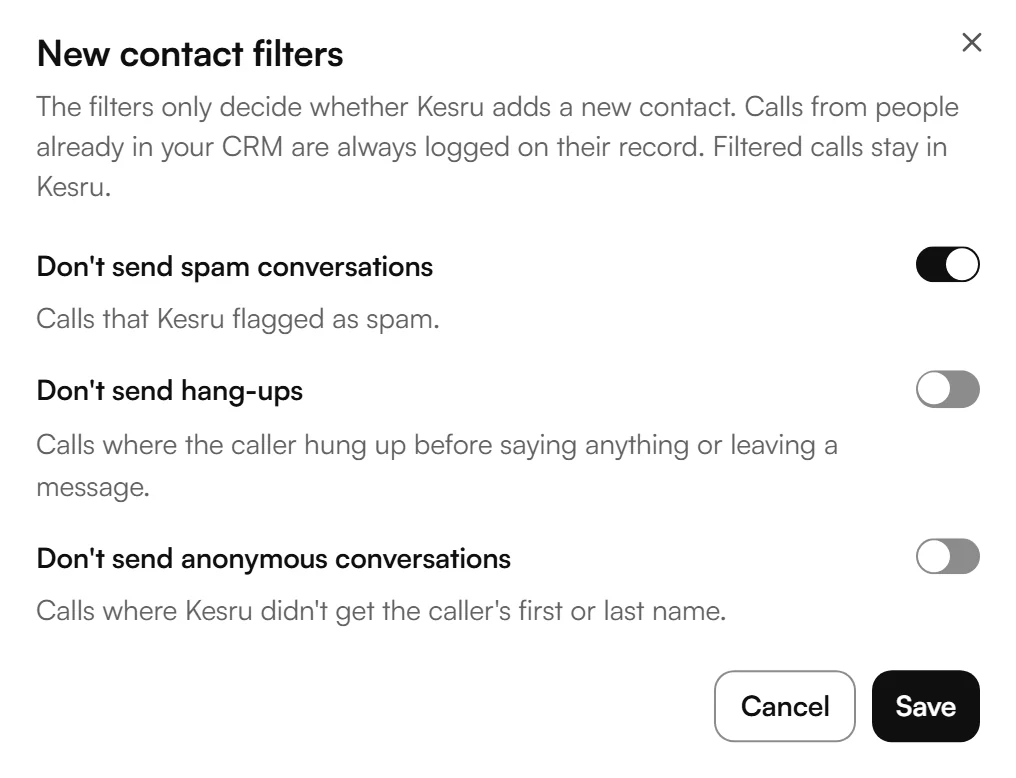
- Don't send spam conversations: calls that Kesru flagged as spam.
- Don't send hang-ups: calls where the caller hung up before saying anything or leaving a message. A call that was transferred to your team doesn't count as a hang-up.
- Don't send anonymous conversations: calls where Kesru didn't get the caller's first or last name.
The filters only decide whether Kesru adds a new contact. Calls from people already in Microsoft Dynamics 365 are always logged on their record. Filtered calls stay in Kesru.
Sync your contacts
Contact sync keeps your contacts in Kesru and Microsoft Dynamics 365 the same both ways, matched by phone number. It's off until you turn it on.
Under Contact sync, choose Set up contact sync, then turn on Contact sync. Turning it on imports all your Microsoft Dynamics 365 contacts.
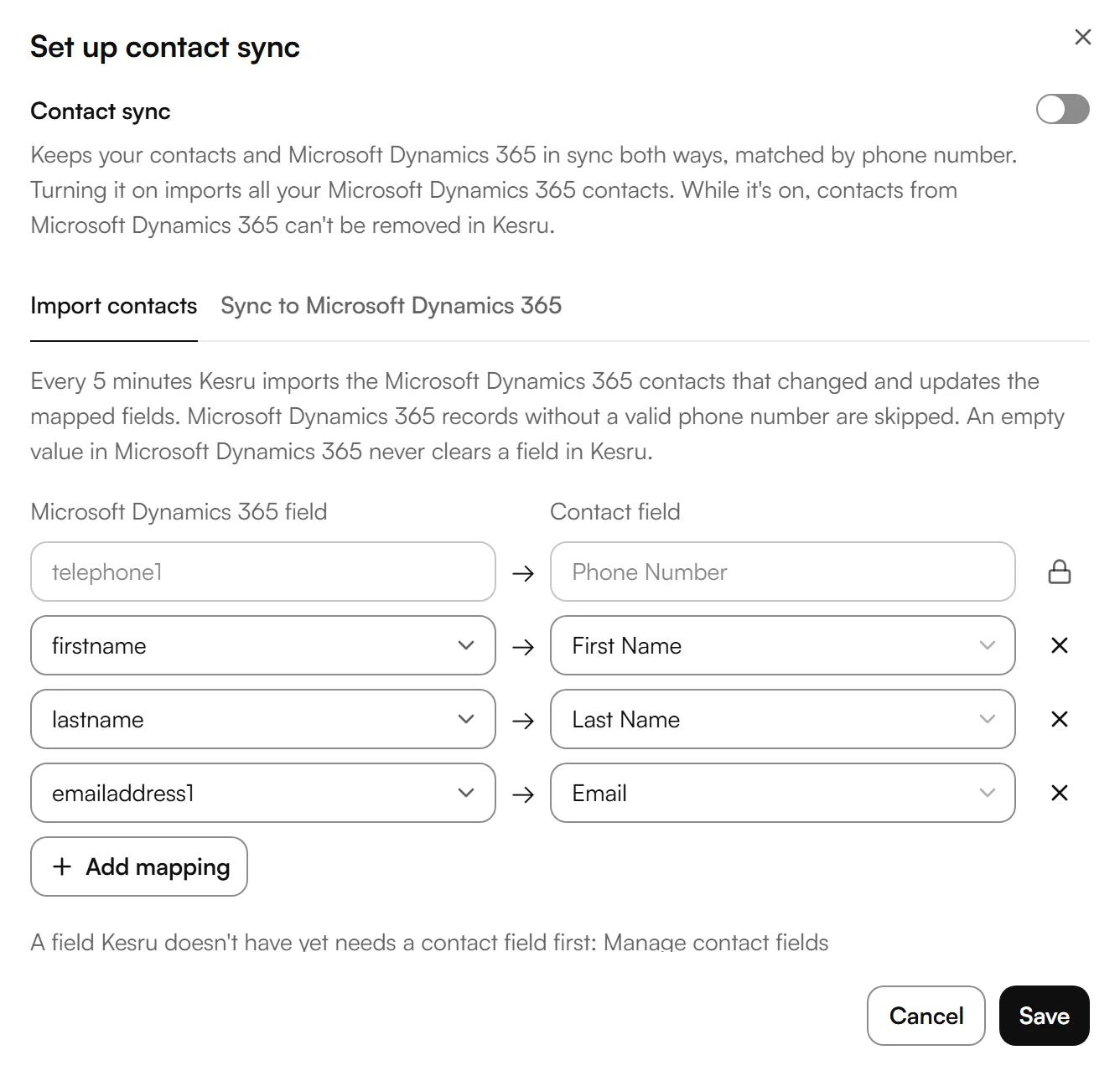
On Import contacts, choose which Microsoft Dynamics 365 field fills which contact field in Kesru. First name, last name and email are mapped to start with, and Phone Number is mapped for you and locked. Choose Add mapping for more fields.
On Sync to Microsoft Dynamics 365, choose the fields Kesru writes back when they change in Kesru, by hand or after a call. Then choose Save.
- Every 5 minutes Kesru imports the Microsoft Dynamics 365 contacts that changed. Records without a valid phone number are skipped, and an empty value in Microsoft Dynamics 365 never clears a field in Kesru.
- Kesru only updates records it imported from Microsoft Dynamics 365. It never deletes records there and never writes the phone number.
- While contact sync is on, contacts from Microsoft Dynamics 365 can't be removed in Kesru. Run full sync imports all your contacts again.
- A field Kesru doesn't have yet needs a contact field first, under Manage contact fields.
Example
Say a new caller asks your agent about a leaking water heater. Dynamics 365 has no active contact with that number, so Kesru adds one with the name and number from the call. In the contact's timeline you then find:
- A completed phone call activity with the subject Handled by Kesru, with the direction, the start and end time, the duration in minutes and the caller's number. Its description starts with the call duration, followed by the summary, a recording link if the call was recorded, and View the call in Kesru.
- Each text your agent sent in the call, a payment link for example, as a completed task titled Text sent by Kesru.
- Website chats as a completed task titled Chat handled by Kesru.
Good to know
How calls are logged
- Kesru finds callers by phone number. Calls without caller ID aren't logged, because there's no number to search for.
- If more than one record has the caller's number, Kesru logs the call on each of them.
- Kesru fills in a missing first or last name from the call but never overwrites a name you already have. A one-word name becomes the first name.
- Outbound calls your agent makes are logged the same way as inbound calls.
- The recording link works for 30 days. View the call in Kesru always opens the call in your dashboard.
- Website chats are logged when the visitor leaves a callback number in the chat.
- Kesru only looks at active contacts. Numbers stored with brackets, spaces or dashes, such as (415) 555-1212, are found too, and a call is only logged where the number really matches.
Microsoft Dynamics 365 shows Needs reconnecting
Microsoft Dynamics 365 no longer accepts the connection. Until you choose Reconnect and sign in again, Kesru logs nothing there.
Disconnecting Microsoft Dynamics 365
Disconnect stops logging your calls in Microsoft Dynamics 365. What's already in Microsoft Dynamics 365 stays. Kesru connects one CRM per workspace, so to switch, disconnect Microsoft Dynamics 365 first.
Your callers' data
How Kesru handles callers' numbers, summaries and transcripts is described in the Privacy Policy.
Related integrations
Questions about Microsoft Dynamics 365?
Write to us at support@kesru.com, or start free and connect Microsoft Dynamics 365 in your dashboard.