Microsoft Teams integration
After every call, Kesru posts the caller, the result and a summary to your Teams channel. When a call needs someone from your team, your agent posts during the call.
What it does
Each Teams channel you add gets two kinds of messages:
- After each call: who called, the agent, the duration, the status, why the call ended, the caller's message and the summary, plus a link that opens the call. For agents that book appointments, also whether one was booked.
- During a call: when a caller wants someone from your team or needs something your agent can't do, your agent posts its message to your team, the conversation up to now and a link to Live Monitoring, where you can hear the call with Live Listen and talk to the caller yourself with Take Over.
Connect Microsoft Teams
In Teams, select More options (...) next to the channel, then Workflows.
Choose the template Send webhook alerts to a channel and save it.
Copy the webhook link.
In your dashboard, open Slack & Teams and choose Add channel. Enter a Channel name, paste the link under Webhook URL and choose Add. In this example, the channel only gets failed inbound calls.
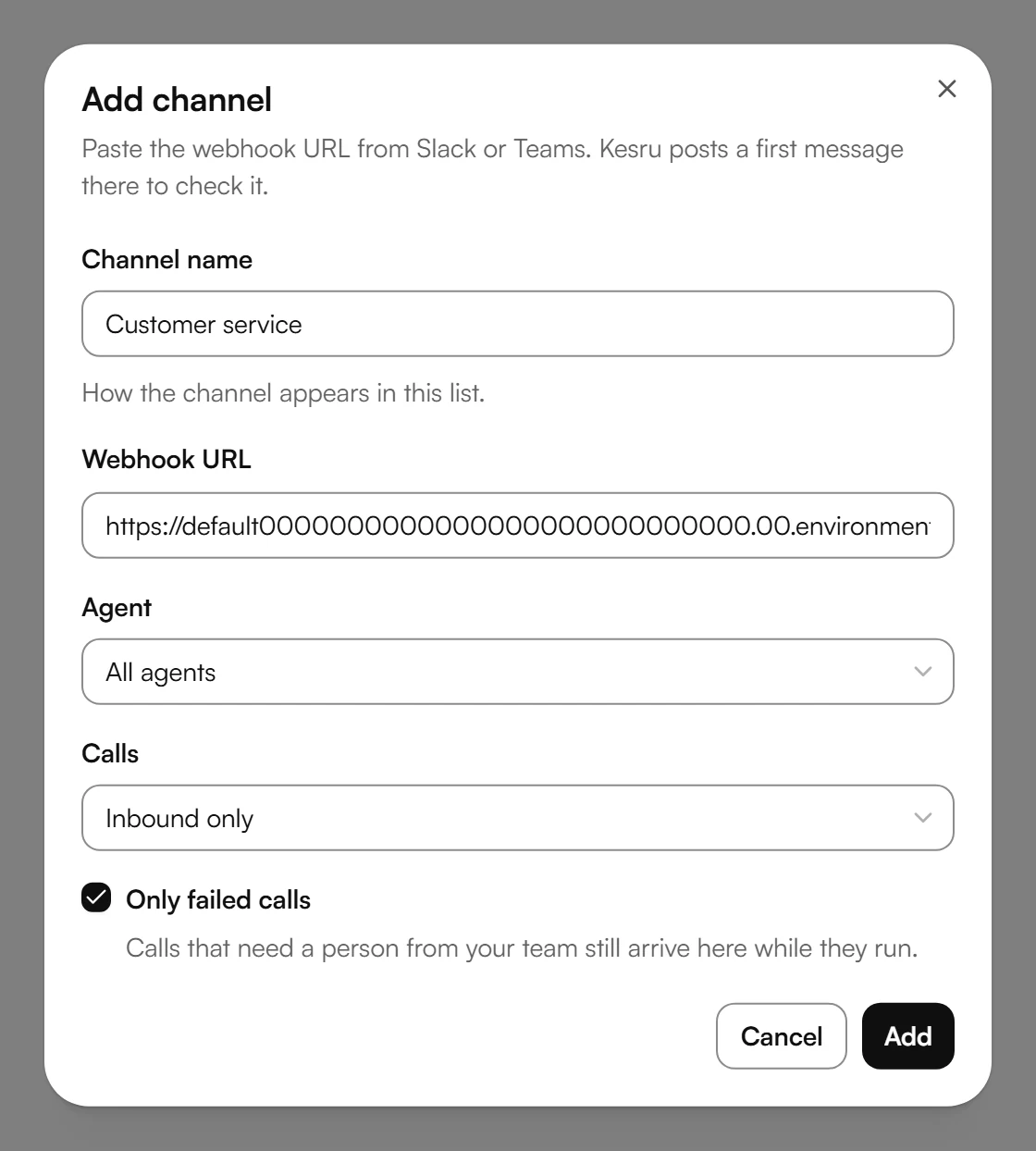
Kesru posts a first message to the channel to check the link. Once it has arrived, the channel shows under Channels.
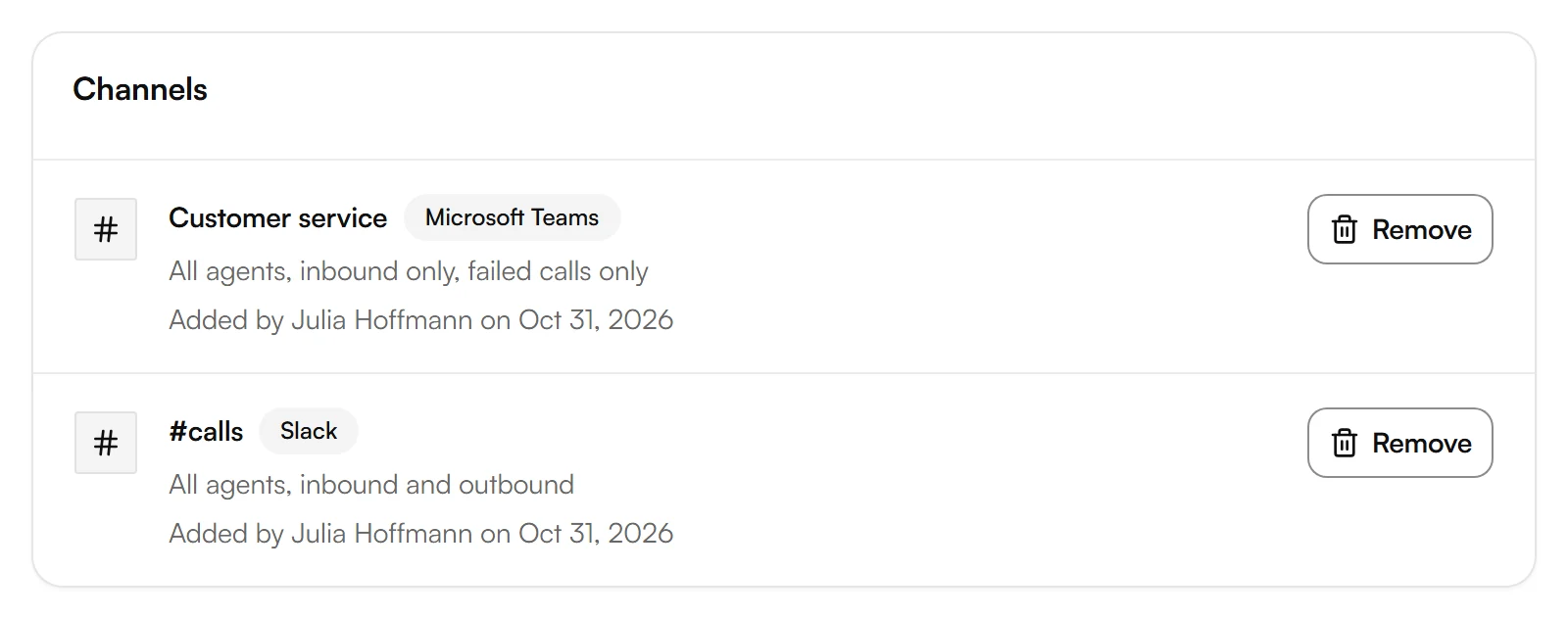
Choose which calls a channel gets
When you add a channel, you decide which calls it gets:
- Agent: All agents or one of your agents.
- Calls: Inbound and outbound, Inbound only or Outbound only.
- Only failed calls: only calls with the status Failed. Messages from calls that need someone from your team still arrive while those calls run.
To change these choices later, remove the channel and add it again.
Example
Maria Lopez calls a plumbing business about a leaking water heater, and its agent, Front Desk, takes the call. After the call, the Teams channel gets this message:
- The title New call from Maria Lopez.
- From: +19545550148, Agent: Front Desk, Duration: 3:12, Status: Successful, End reason: User hangup.
- Summary: Maria Lopez called because her water heater is leaking. She wants a technician tomorrow morning and asked for a call back to confirm the time.
- In Teams, the message is a card with a View call button that opens the call in your dashboard.
If Maria asks for someone from the team during the call, the channel gets A live call needs a person from your team, with her number, the agent, the agent's message to your team, the conversation up to now and Open Live Monitoring.
Good to know
Private channels
Teams posts in standard and shared channels, not yet in private ones.
Which links work
Kesru accepts the links of Teams workflows and of incoming webhooks in Teams.
If a message doesn't arrive
After a call, Kesru tries again after 2 and after 10 seconds. If Teams still doesn't accept the message, the channel shows Last message not delivered on with the date and the answer from Teams, until a message arrives again.
Removing a channel
Remove stops Kesru from posting to the channel right away.
Who can add channels
Workspace owners and admins. Together, Slack and Teams take up to 20 channels.
Your data
How Kesru handles call data is described in the Privacy Notice.
Related integrations
Questions about Microsoft Teams?
Write to us at support@kesru.com, or start free and connect Microsoft Teams in your dashboard.