SIP trunk integration
Keep your phone system or SIP trunk provider. Your agents answer calls to your numbers and call out over your trunk.
What it does
Kesru connects to your trunk in both directions. Your numbers remain with your provider, and you import each number Kesru should handle.
- Inbound: your provider passes calls to your number on to Kesru's SIP server, and the agent you assign to the number answers them.
- Outbound: Kesru places your agent's calls through the address your provider gives you for the trunk.
Connect your SIP trunk
In your Kesru dashboard, open Phone and choose SIP trunk. Kesru SIP server lists the server's address for each transport.
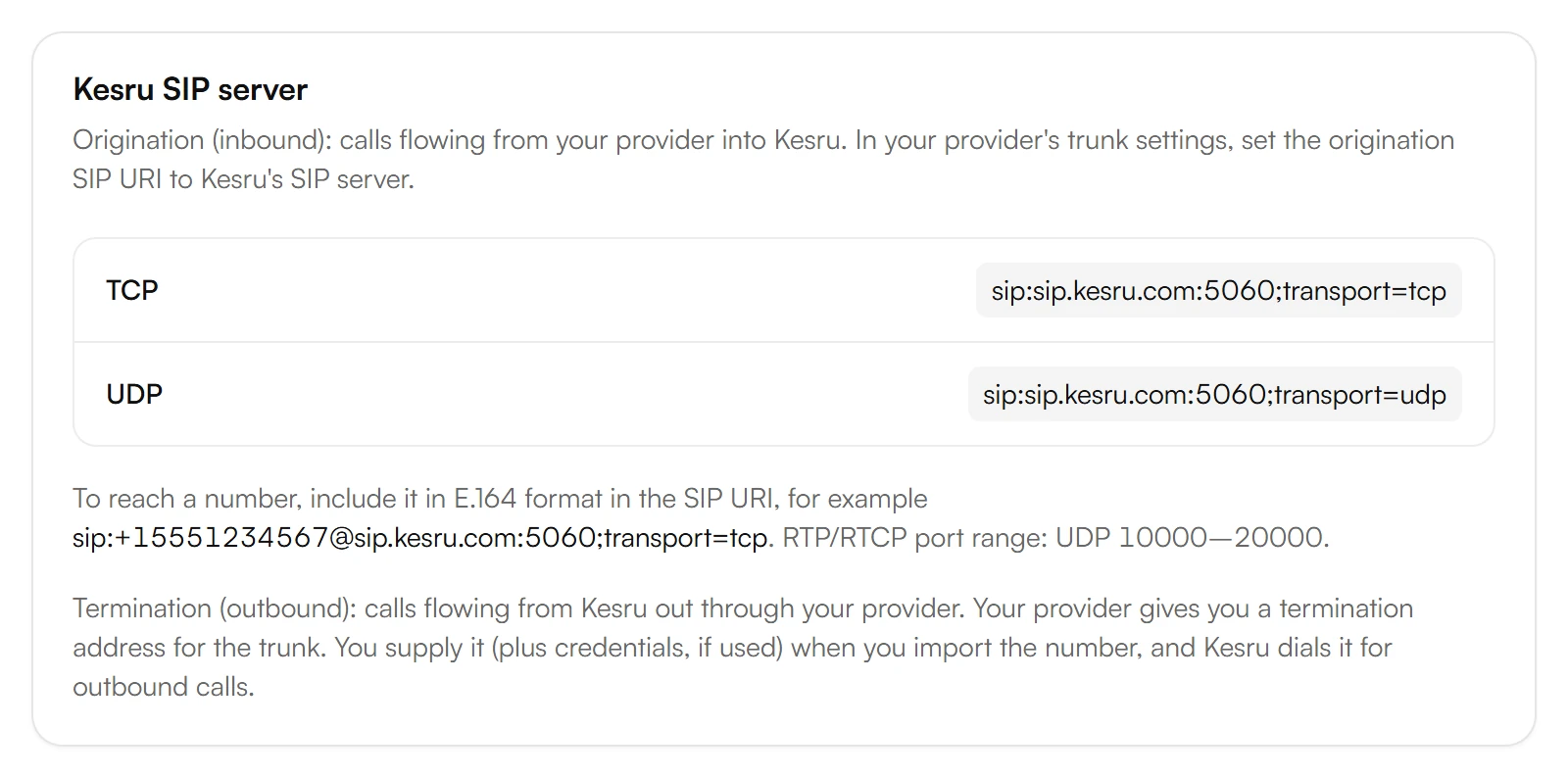
In the trunk settings at your provider, enter Kesru's SIP server in the origination SIP URI field. Put the E.164 phone number in front of it, as the card shows.
Back in Kesru, select Import number. Under Label, name the number, and enter the Phone Number with its country code, such as +15551234567.
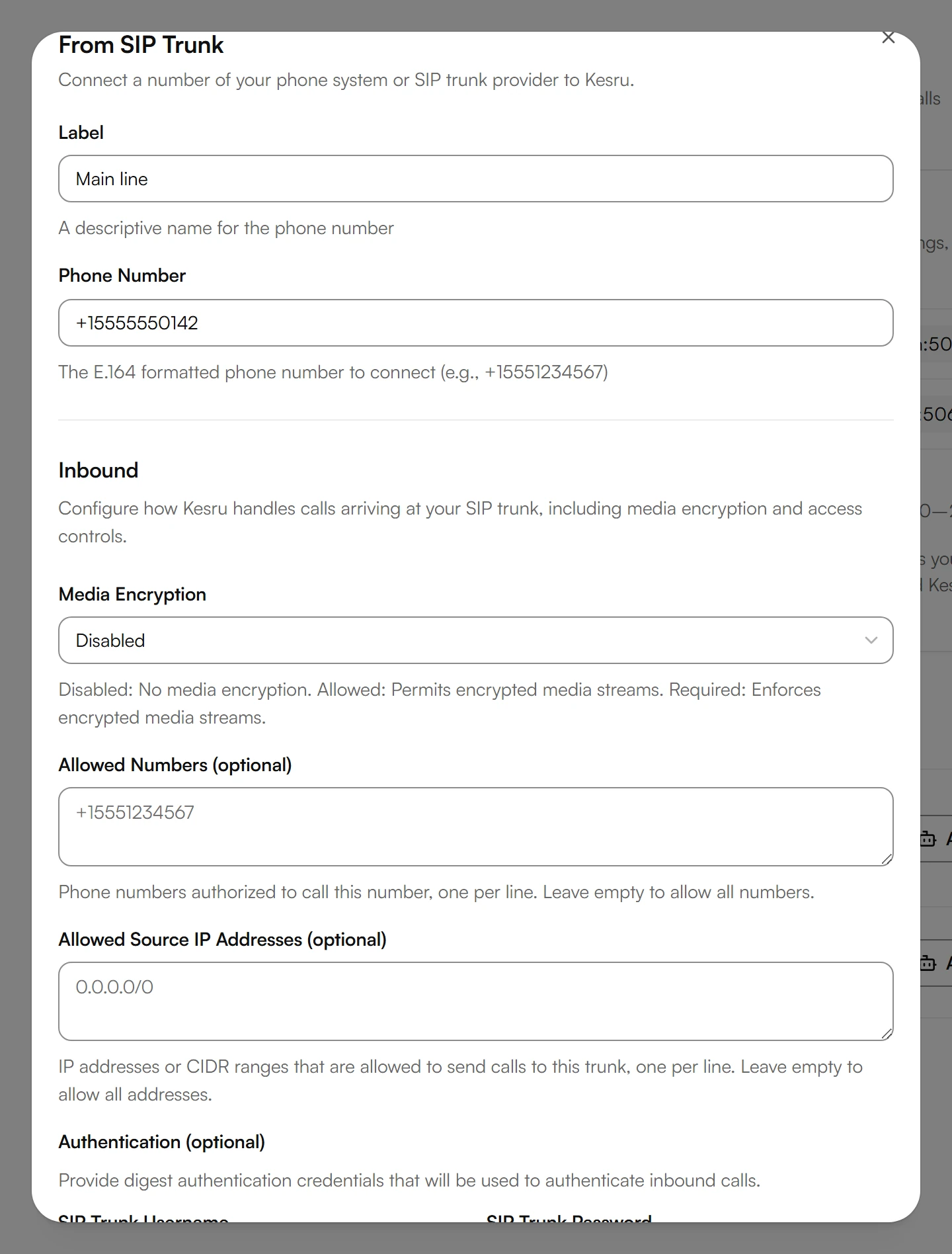
Under Inbound, choose the Media Encryption. If you want, limit who reaches the number with Allowed Numbers, Allowed Source IP Addresses and Authentication.
Under Outbound, enter the Address your provider gives you for the trunk, as a hostname or IP address, and choose the Transport Type. Add Authentication if your provider uses it.
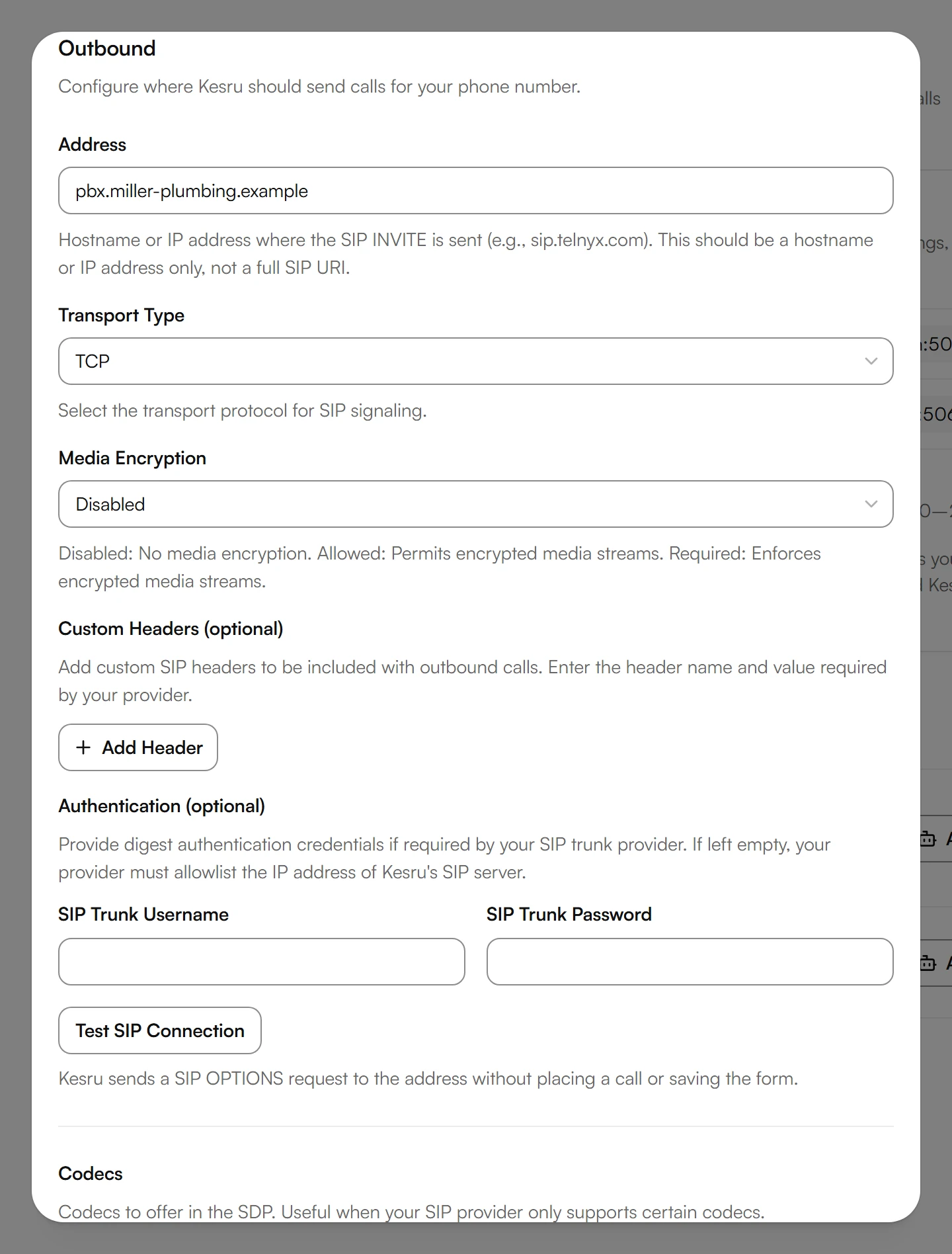
Select Test SIP Connection. Kesru checks the address without placing a call and without saving.
Select Import. Then choose Assign Agent next to the number and pick the agent that answers its calls.
Only a published agent can take a number. Publish your agent before you assign it.
Settings
- Media Encryption: whether the audio is encrypted. Disabled turns encryption off, Allowed accepts it, and Required insists on it.
- Allowed Numbers: only these callers reach the number, one number per line. Empty lets everyone through.
- Allowed Source IP Addresses: only calls from these addresses or CIDR ranges reach Kesru, one per line. Empty accepts any address.
- Authentication: digest authentication, with its own username and password for inbound and for outbound calls.
- Transport Type: TCP or UDP for outbound signaling, as your provider expects.
- Custom Headers: your own headers on every outbound call, each with a name starting with X- and a value.
- Codecs: the audio formats Kesru offers, PCMU, PCMA and G.722 (HD). All three are on at the start, and at least one has to stay on.
To change a number's settings later, open the menu next to it and choose Edit. A saved password stays masked and is kept if you leave it as it is.
Example
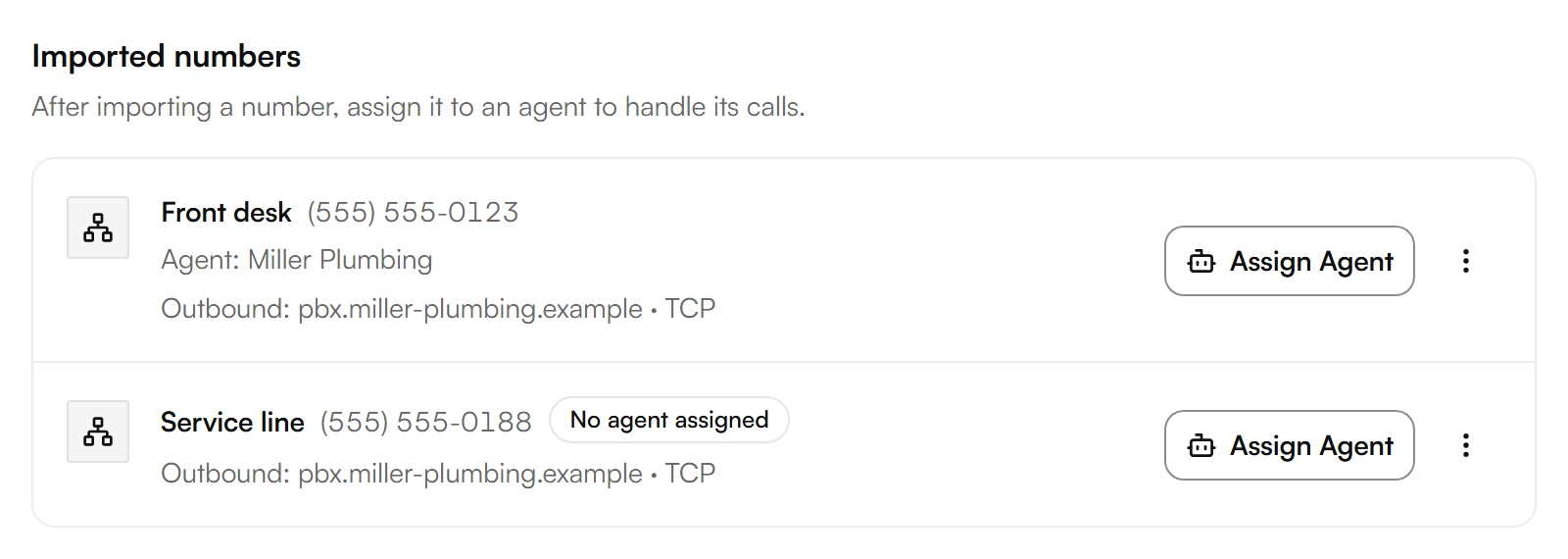
Miller Plumbing keeps its phone system and imports two numbers. Front desk goes to the agent Miller Plumbing, which answers its calls. Service line has no agent yet. Both go out through pbx.miller-plumbing.example over TCP.
Good to know
The connection test fails
The result names the cause. With 401 or 407, enter both the username and the password, or correct them. With 403, check which IP addresses your provider allows. Without an answer, check the address, port, transport and firewall.
The connection test passes
The test only shows that the address answers. Routing and audio are checked by real calls, so after importing, try one call in each direction.
Outbound without authentication
Leave Authentication under Outbound empty only if your provider allows the IP address of Kesru's SIP server.
The caller's number from your phone system
If your phone system sends the caller's number in the X-Caller-ID header, Kesru uses it as the caller's number.
Your own SIP headers
On an inbound call, headers beginning with X- show on the call's page under SIP headers. Your agent also gets them as variables, for example sip_contact_id from X-Contact-ID.
Deleting a number
Its calls no longer reach Kesru, and Kesru stops calling out with it over your trunk. The number stays with your provider, so you can import it again later.
Your data
How Kesru handles calls and callers' data is described in the Privacy Policy.
Related integrations
Questions about SIP trunking?
Write to us at support@kesru.com, or start free and import your numbers in your dashboard.