Stripe integration
Your agent texts callers a secure Stripe checkout page during the call, for a fixed amount or the amount they choose. The money goes straight to your Stripe account.
What it does
Once the caller agrees to pay, your agent texts them a link to a Stripe checkout page with the right amount and tells them it is in their text messages. They can pay while your agent remains on the call.
- Stripe hosts the checkout page. Your agent never asks for or accepts card numbers, security codes or bank details over the phone.
- The payment goes to your own Stripe account.
- If the caller says they paid, your agent checks with Stripe before it confirms it.
- If callers order from your Shop, your agent can also text them a checkout page for their order.
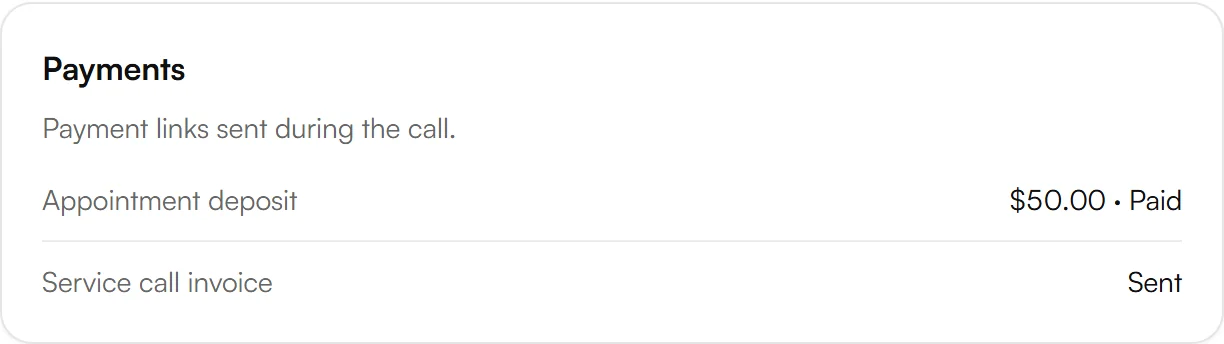
- Each call in your dashboard shows the links sent in the call and whether they were paid.
Payment links are sent by text message, so they need the SMS add-on. If it isn't on yet, the Payments page says so and links to Billing, where you switch it on.
Connect Stripe
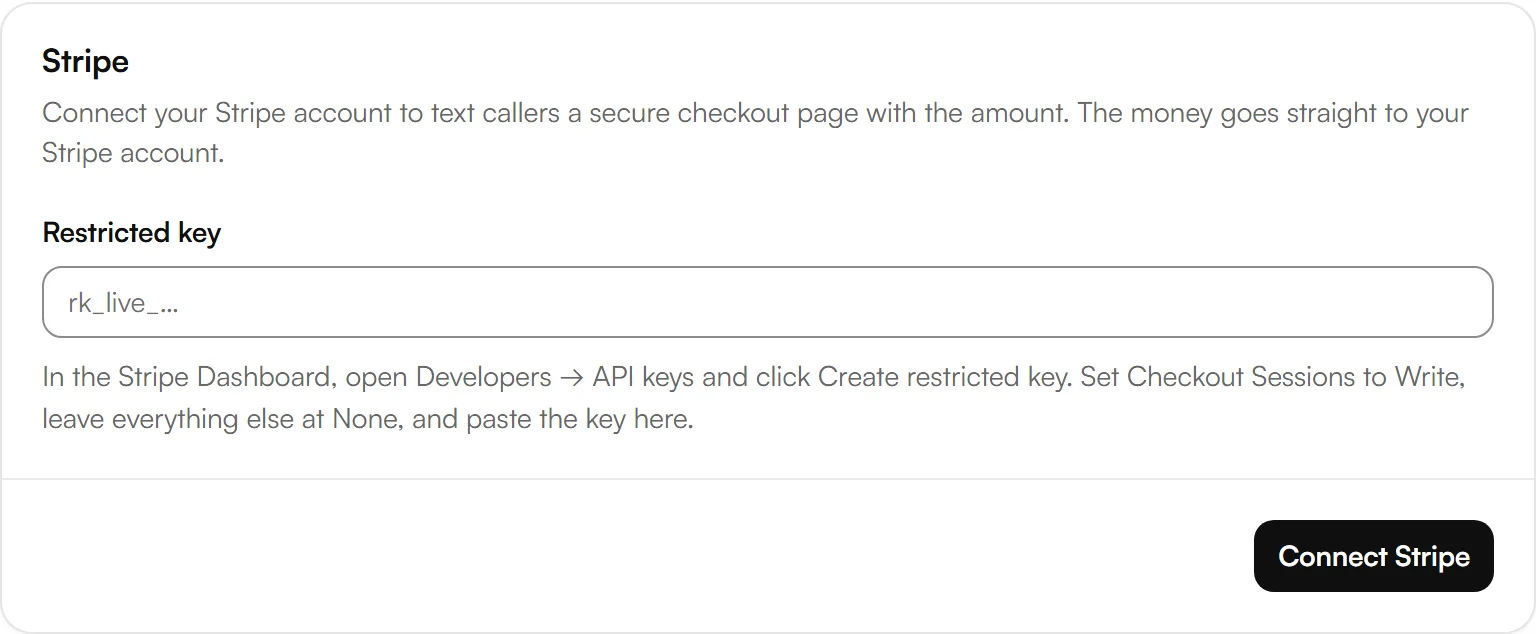
In the Stripe Dashboard, open Developers → API keys and choose Create restricted key. Set Checkout Sessions to Write and leave everything else at None.
In your Kesru dashboard, open Payments. On the Stripe card, paste the key under Restricted key and choose Connect Stripe.
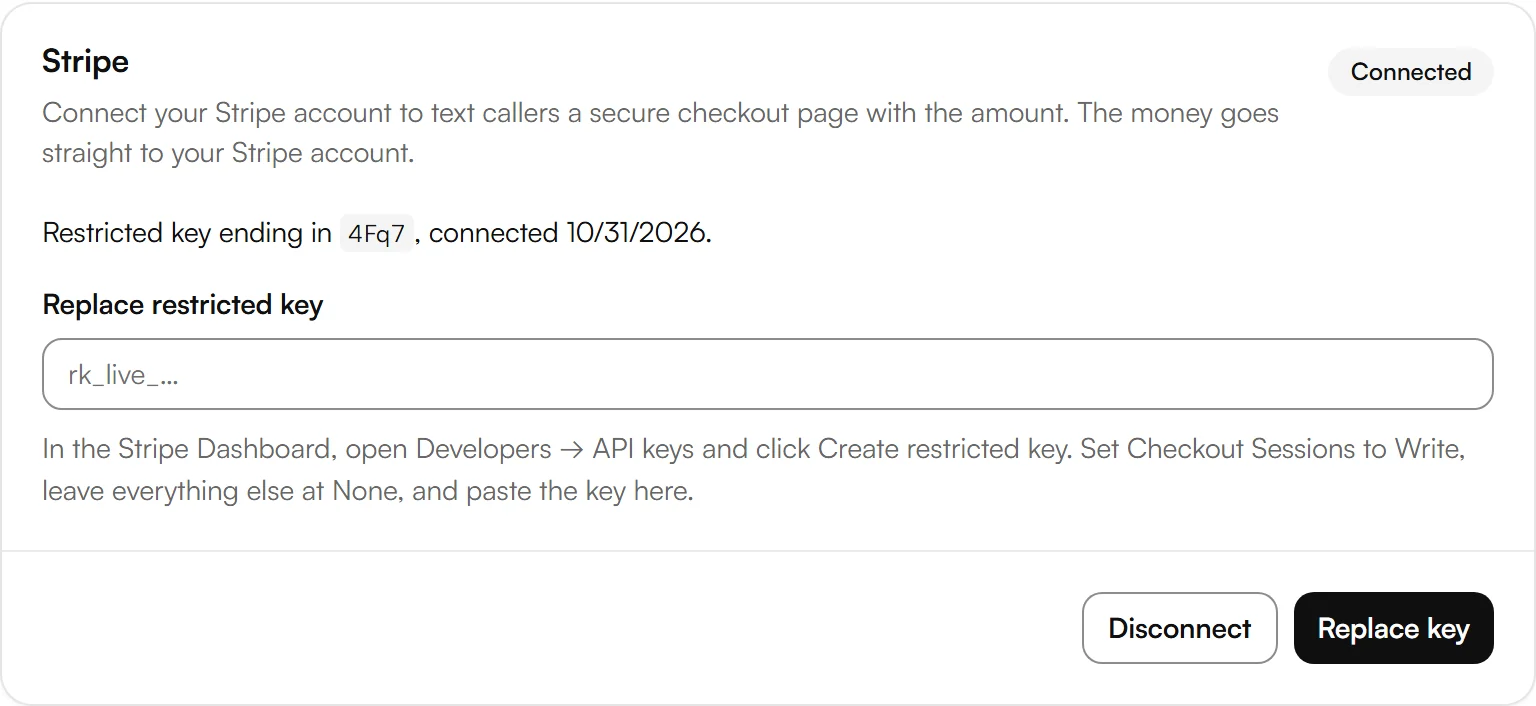
Stripe shows as Connected, with the last four characters of your key and the date you connected it.
Only workspace owners and admins can connect Stripe. A key that starts with rk_test_ connects in Test mode, with checkout pages from Stripe's test mode.
Add a payment
Under Payment links, choose Add payment link for each payment your agent can send. With Stripe connected, the Type list has two more choices:
- Fixed amount: a Stripe checkout page with a set amount, such as a deposit or booking fee.
- Caller chooses the amount: a Stripe checkout page for the amount the caller wants to pay, such as an invoice. You set a Minimum and, if you like, a Maximum.
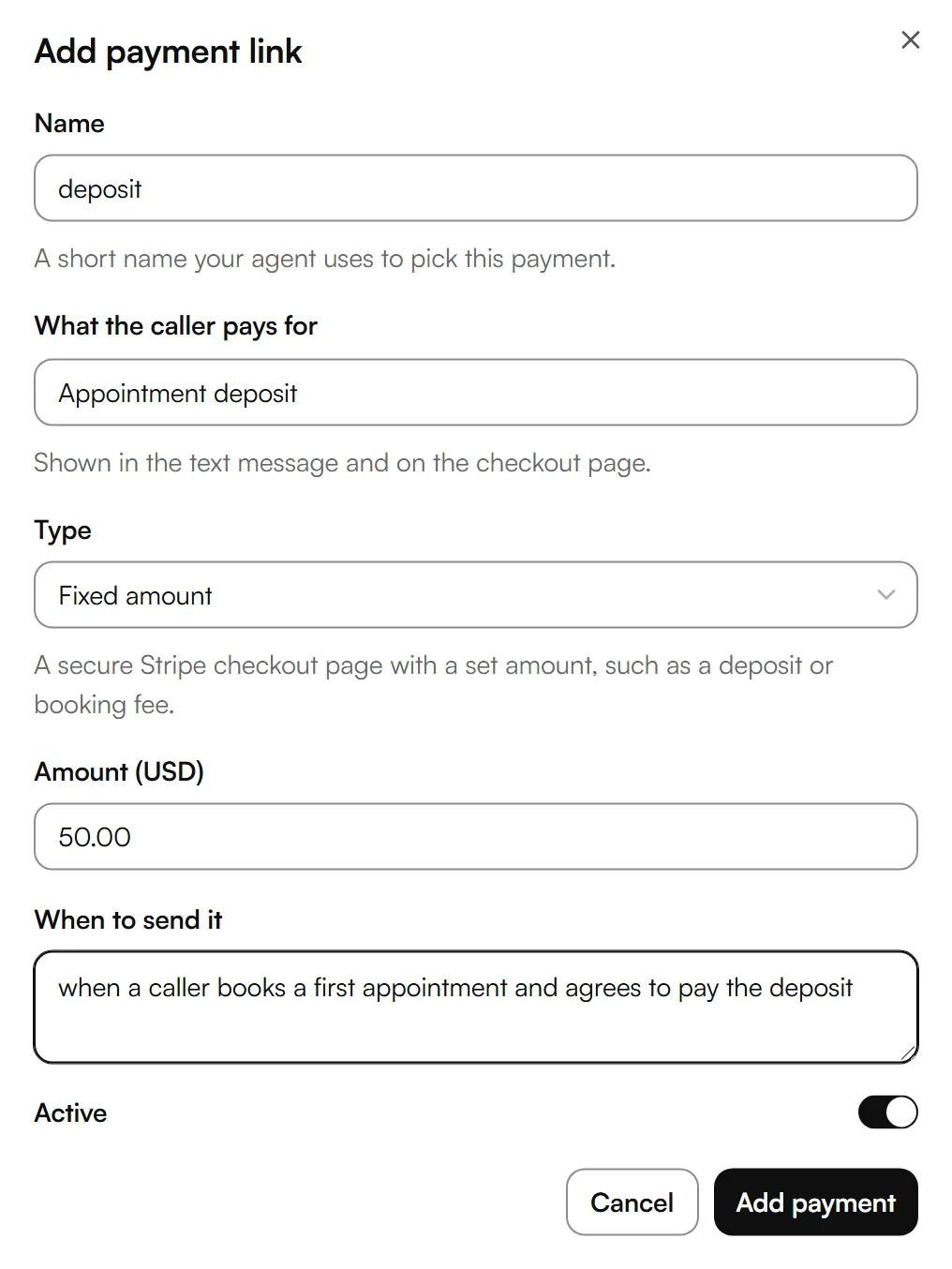
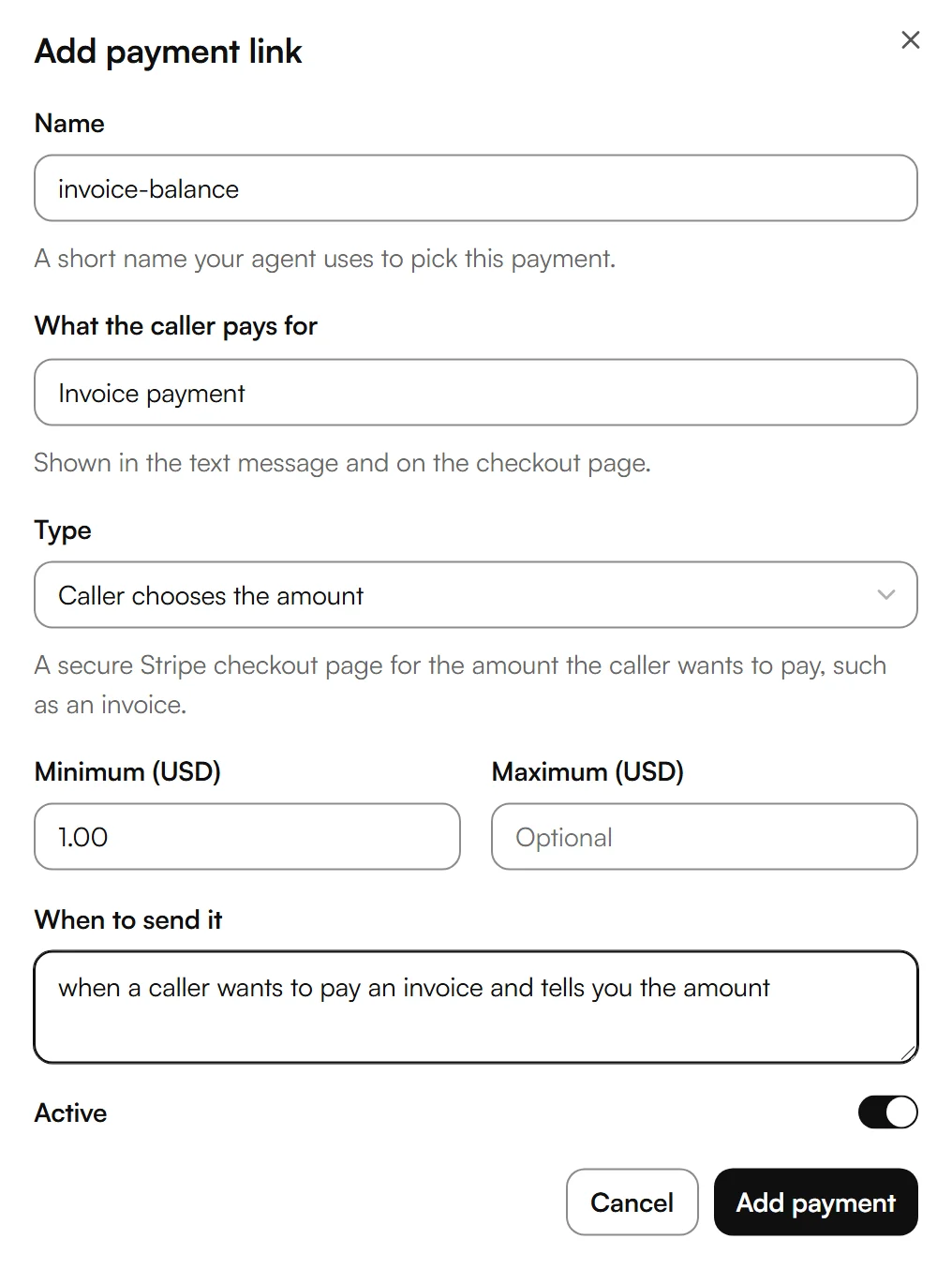
- Name: a short name your agent uses to pick this payment.
- What the caller pays for: shown in the text message and on the checkout page.
- When to send it: when your agent should offer this payment, in your own words.
- Active: turn a payment off without deleting it.
Example
A plumbing business asks new customers for a $50 deposit when they book a first appointment. It adds a payment named deposit with a fixed amount of $50.00, plus the instruction to send it when a caller books a first appointment and agrees to pay the deposit.
A caller books a first visit and agrees to the deposit. The agent sends the link by text and says it is in the caller's text messages. The text reads “Pay for Appointment deposit ($50.00)” followed by a short link to the Stripe checkout page. The caller pays without hanging up.
Good to know
When a payment shows as Paid
Stripe links start as Not paid yet and change to Paid or Expired. Kesru asks Stripe for the latest status when you open the call. A checkout page stays open for 24 hours, Stripe's default.
Payments marked Needs Stripe
Payments with a fixed or chosen amount need Stripe. While Stripe isn't connected, they show Needs Stripe and your agent doesn't send them. Links to your own payment page keep working.
Replacing or disconnecting the key
To use a new key, paste it under Replace restricted key and choose Replace key. Disconnect removes the key. Your payments stay in Kesru, and those with an amount work again once you connect Stripe with a new key.
Payment data
How Kesru handles caller numbers and the texts sent during a call is described in the Privacy Policy.
Related integrations
Questions about Stripe?
Write to us at support@kesru.com, or start free and connect Stripe in your dashboard.