
Cursor integration
Work with your Kesru agents, calls and tests from Cursor while you build.
What it does
Cursor connects to Kesru's MCP server and signs in with your Kesru login, so you don't need an API key. Then you can ask Cursor about your calls and agents in plain language and have it change an agent for you.
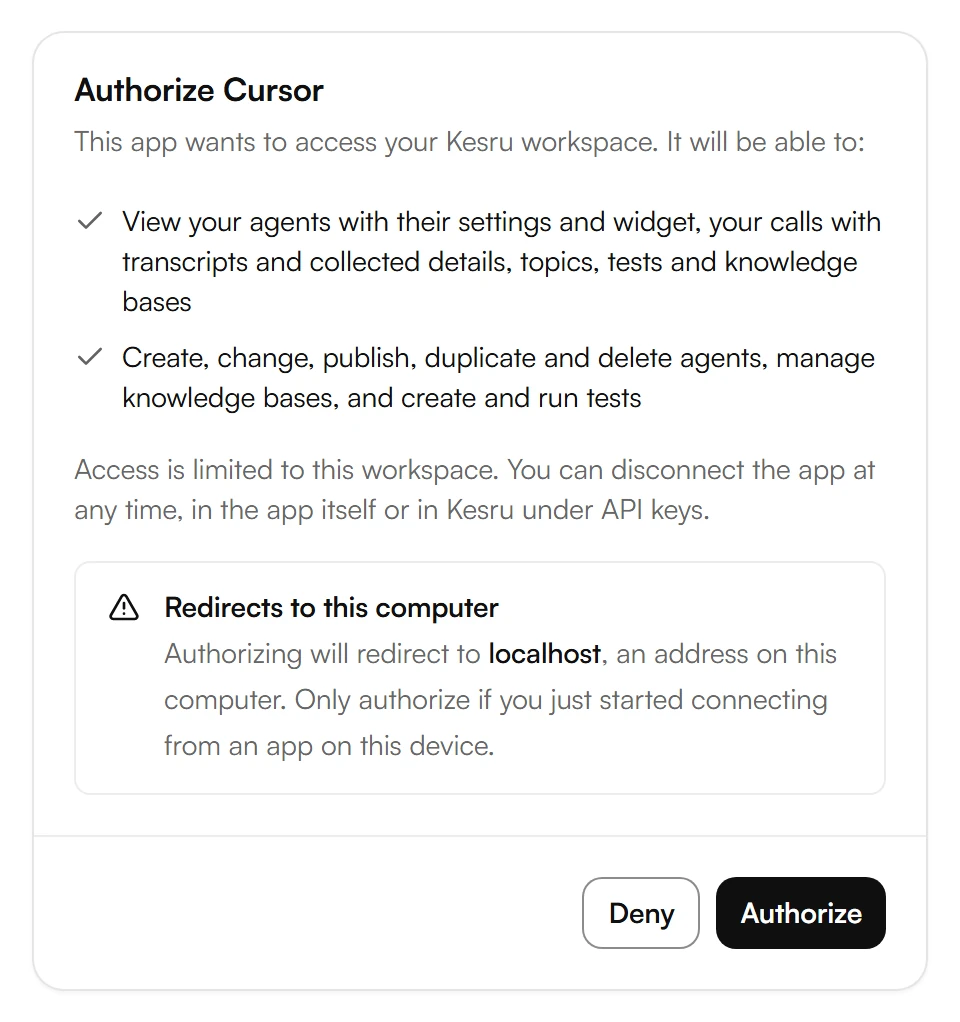
- Read: your agents with their settings and widget, your calls with transcripts and collected details, topics, tests and knowledge bases.
- Change: create, change, publish, duplicate and delete agents, manage knowledge bases, and create and run tests.
- A change goes live at once as a new published version of the agent. If you ask, it stays in the agent's draft until you publish it.
Connect Cursor
In your Kesru dashboard, open Billing and choose API keys. Under Connect AI assistants (MCP), copy the Server URL.
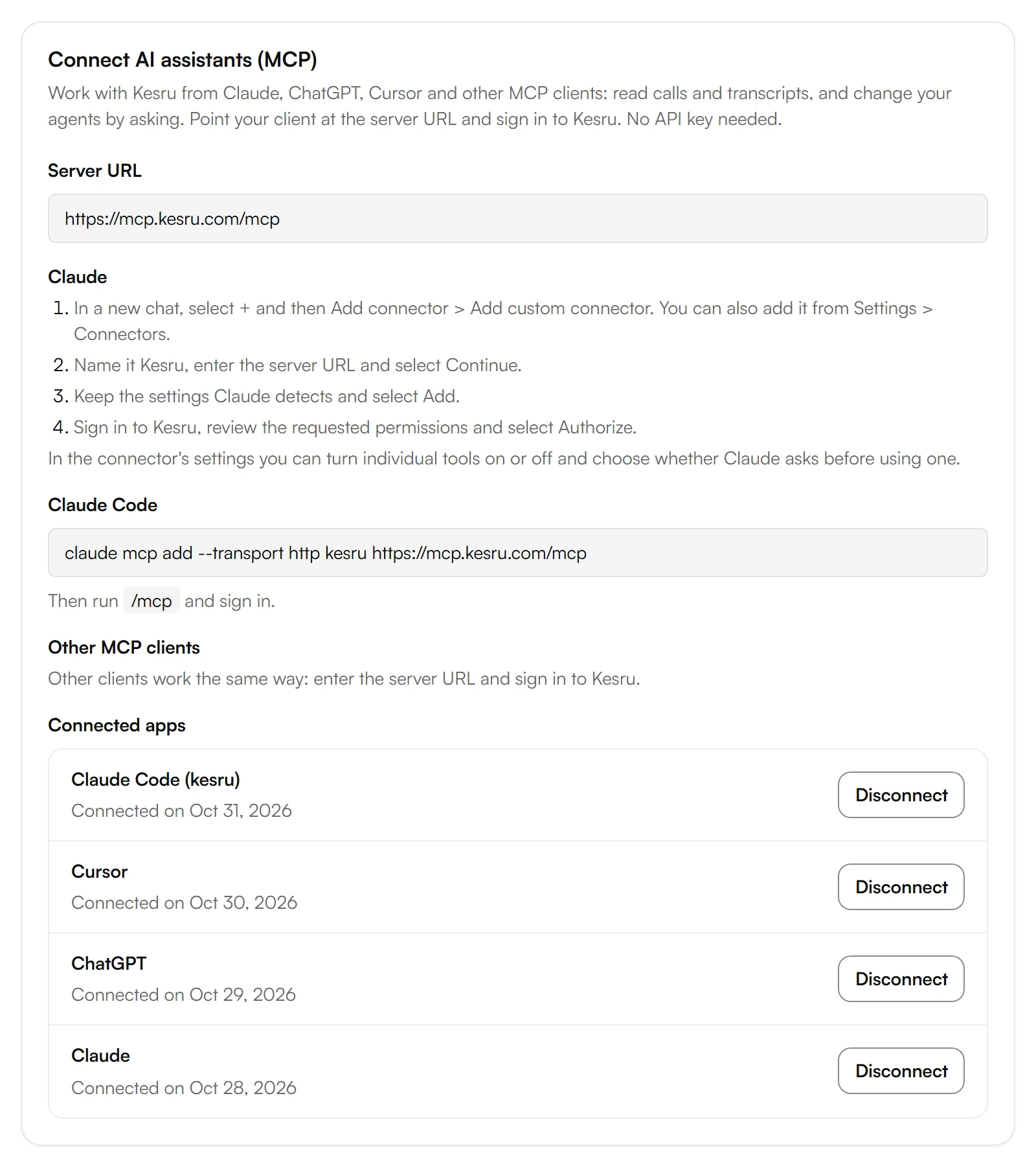
In Cursor, add Kesru's server URL as an MCP server. Cursor's MCP documentation shows where.
Sign in to Kesru, review the requested permissions and select Authorize.
Back on API keys, Cursor now shows under Connected apps.
Kesru's tools
The app picks the tool that fits your request. Kesru marks the tools that only read as read-only and the tools that delete as destructive.
- Workspace and agents: get_account_overview, list_agents, get_agent, compare_agents, create_agent, update_agent, publish_agent_draft, duplicate_agent, delete_agent and get_widget.
- Calls: list_calls, get_call, search_calls and list_topics.
- Knowledge bases: list_knowledge_bases, create_knowledge_base, update_knowledge_base, delete_knowledge_base, add_knowledge_source and delete_knowledge_source.
- Tests: list_tests, create_test, update_test, delete_test, run_tests, list_test_runs and get_test_run.
Example
A developer builds the website of Miller Plumbing in Cursor and asks for the agent's widget. Cursor reads the widget's settings and the public keys that embed it.
Later the developer asks Cursor to compare the business's two agents. Cursor lists every setting that differs, with each agent's value.
Good to know
Only owners and admins can connect
Anyone on your team can reach the sign-in, but only owners and admins can authorize an app. Everyone else sees that only workspace owners and admins can connect AI assistants.
Kesru shows Redirects to this computer
If the sign-in returns to an address on your computer, Kesru warns you before you authorize. Authorize only if you just started connecting from Cursor on this device.
A tool says the app lacks a permission
Cursor was connected without that permission. Connect it again and allow it.
Seeing what Cursor changed
Each change shows in Security > Audit log, with AI assistant and the app's name as the application, and its IP address.
Disconnecting Cursor
Select Disconnect next to Cursor under Connected apps, or disconnect Kesru in Cursor itself. Cursor can then no longer read or change anything in your workspace.
Your data
How Kesru handles your data is described in the Privacy Policy.
Related integrations
Questions about Cursor?
Write to us at support@kesru.com, or start free and connect Cursor with the server URL from your dashboard.