Decide how calls are handled
Choose whether your staff or your agent answers first, when your agent transfers a call, who on your team it connects to and what it asks every caller.
Checked
Choose who answers first
In your dashboard, open Agents, choose your agent and open On the call.
Under Who answers first, choose when your staff phone rings before the agent. If nobody answers, the agent takes over.
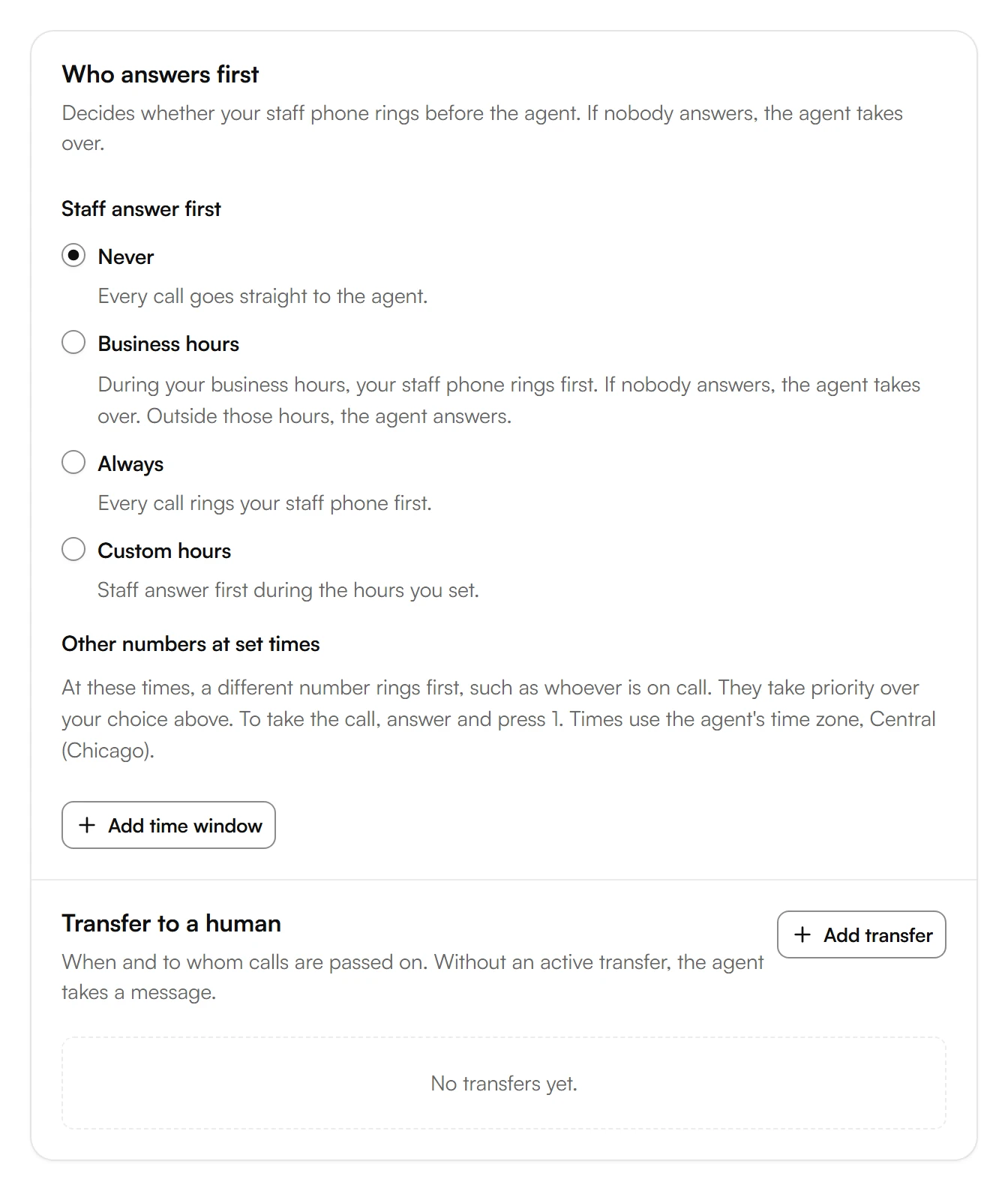
- Never: every call goes straight to the agent.
- Business hours: during your business hours, your staff phone rings first. Outside those hours, the agent answers.
- Always: every call rings your staff phone first.
- Custom hours: your staff answer first during the hours you set.
To ring another number at certain times, for example whoever is on call, choose Add time window under Other numbers at set times. To take the call, answer and press 1.
Transfer calls to a person
Without an active transfer, your agent takes a message. With one, it passes the call on when the caller needs a person.
Under Transfer to a human, choose Add transfer.
Enter a Label, such as Front desk. Under When to transfer, describe when the agent should pass the call on, for example when the caller wants to speak to a person.
Under Phone numbers, enter the number to transfer to.
Under Transfer type, choose Direct, and the person you transfer to sees the caller's number. Or choose Warm, and the AI introduces the caller before connecting.
Under Schedule, choose when the agent transfers: Always, Business hours or Custom schedule.
Choose Save, then Publish.
Calls from some numbers should always reach a person, at any time of day? Add them under VIP callers with Add VIP caller. If nobody answers, the agent takes over.
Connect callers to your team
When a caller asks for someone by name or role, the agent connects them. Outside a person's schedule, it takes a message instead.
Under Team directory, choose Add person.
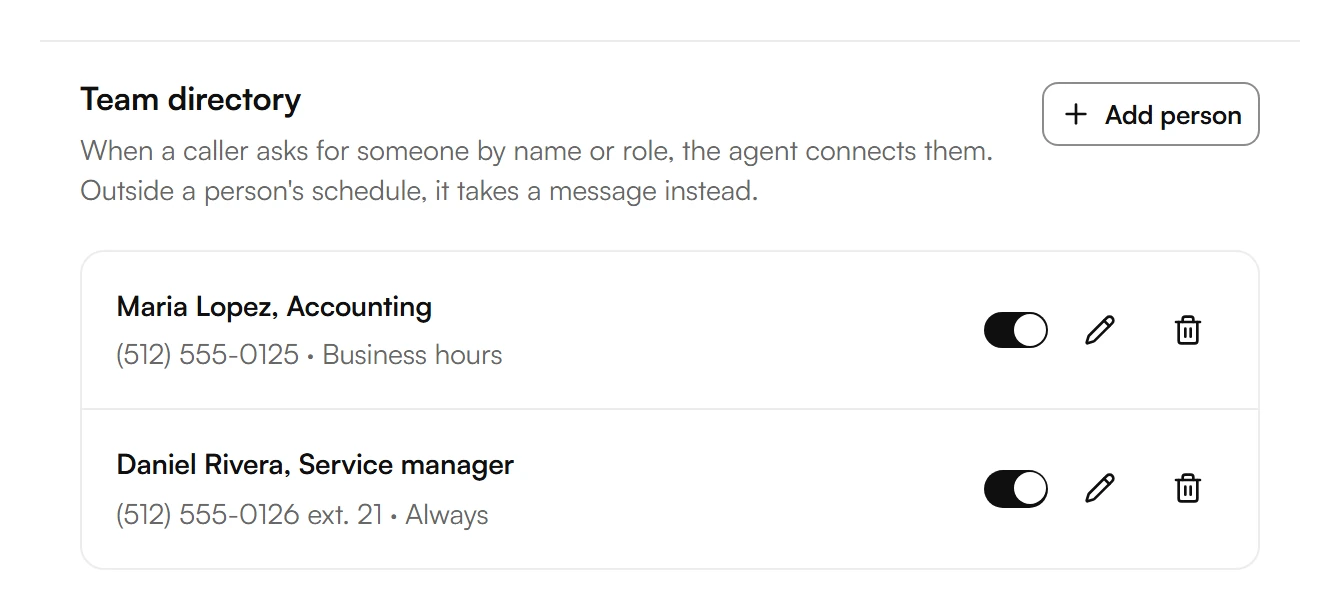
Under Name, enter the person's name. Under Role, add what callers might ask for instead, such as Accounting.
Under Phone number, enter the number the agent connects to. If the person has an extension, enter it under Extension, such as 21. Several people can share a number with different extensions.
Under Schedule, choose when the agent connects to this person: Always, Business hours or Custom schedule.
Choose Save, then Publish.
Someone is away for a while? Turn off the switch next to their name (Active when you edit the person), then choose Publish. Turned off, the agent doesn't know this person until you turn it back on.
Choose what your agent asks
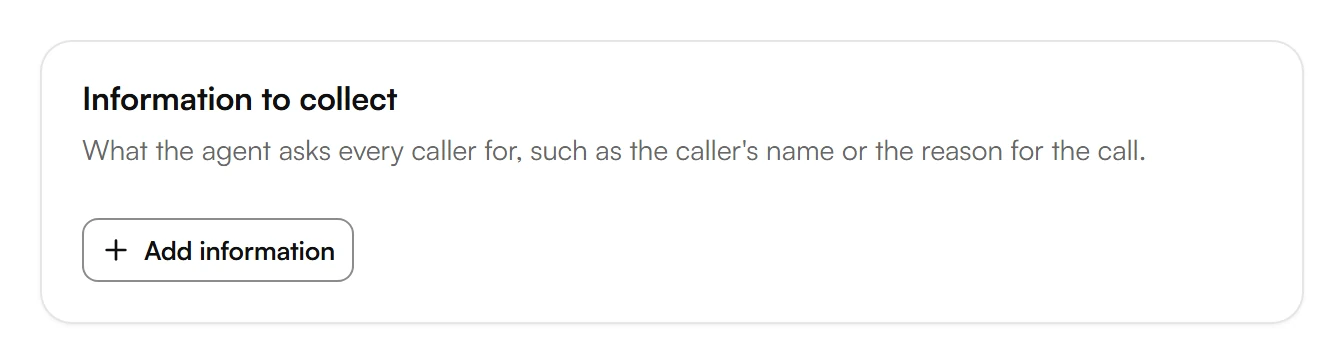
Under Information to collect, choose Add information for each detail the agent asks every caller for, such as their name or the reason for the call.
Under Message scenarios, choose Add scenario to set what the agent should find out for a certain reason for calling before it takes the message.
Choose Save, then Publish.
The messages your agent takes land in your inbox.
Turn off your agent for a while
During maintenance or staff training, choose Turn off AI under Turn off AI temporarily. Your AI stops answering incoming calls until you turn it back on. Your settings stay as they are.
Was this helpful?
Related articles
Still have questions?
Write to us at support@kesru.com.