Connect your calendar
Connect the calendar you already use. Your agent offers open times from it, books appointments in it and can reschedule or cancel them.
Calendars you can connect
How you connect depends on the calendar:
- Google Calendar and Outlook: connect by signing in to Google or Microsoft. The caller gets the invitation.
- Clio: you choose the region of your Clio account, then sign in with Clio.
- iCloud: with an app-specific password. iCloud sends the caller no invitation.
- Other CalDAV calendars: with the server address, username and password. The caller gets no invitation from the calendar.
- Cal.com and Calendly: you paste a key from there (API key or personal access token). The caller gets the invitation.
- Housecall Pro: with an API key. Each booking becomes a job.
What to do in each calendar is on its page under Integrations.
Connect your calendar
In your dashboard, open Calendar and choose Connect calendar. This opens Calendar settings.
Choose Connect next to your calendar.
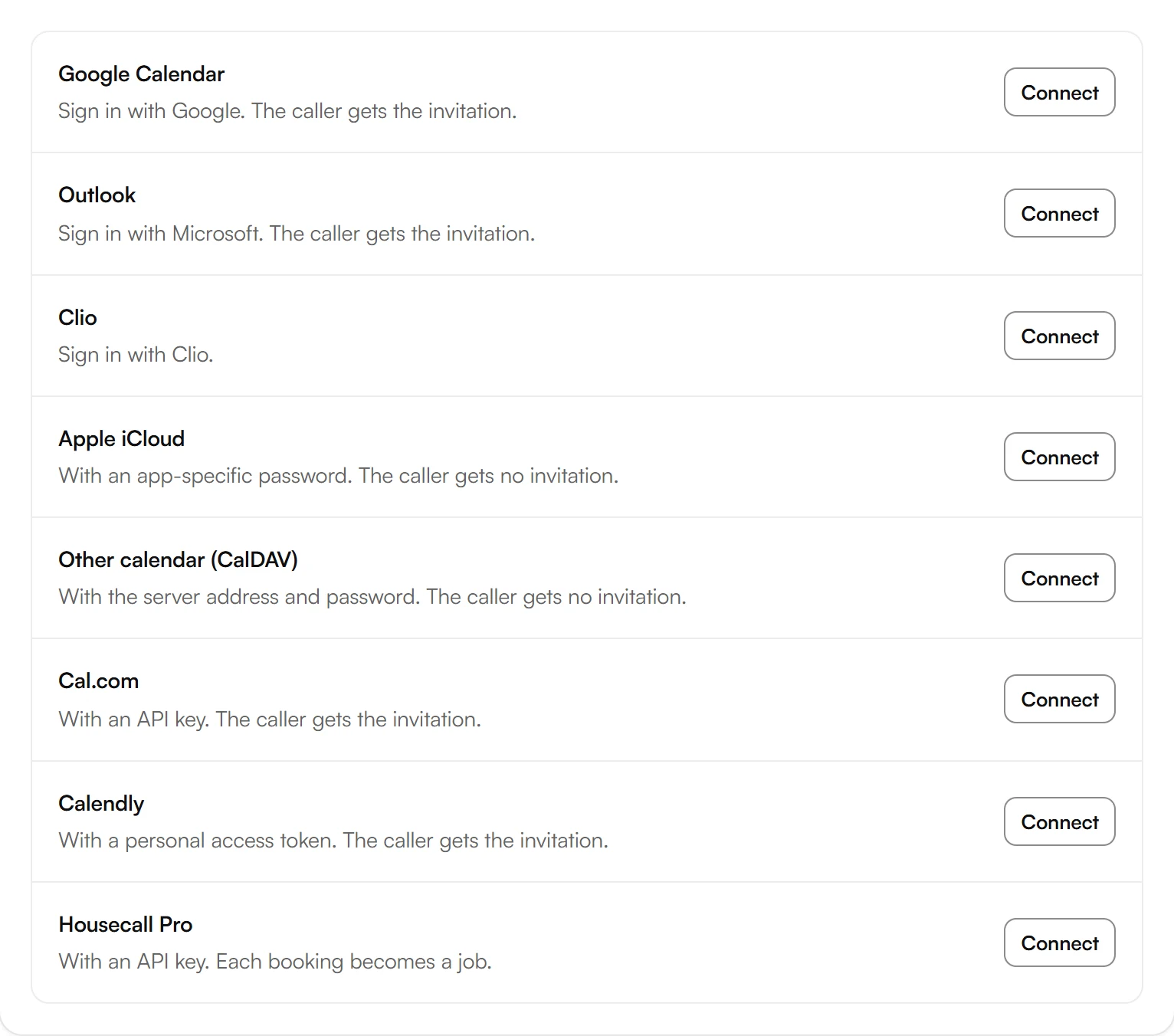
With Google or Outlook, you sign in there and come back to your dashboard. With Clio, you first choose your Clio region in a window, then sign in with Clio. With the others, a window opens: fill in the fields and choose Connect. The window says where to find it.
Set your booking rules
Once your calendar is connected, Calendars and booking rules decides where your agent looks and books. Open times also follow your agent's business hours.
- Check availability from: the calendars your agent checks for free times. It also checks the calendar it adds bookings to.
- Add new bookings to: where new appointments go.
- Slot length and Book up to: how long each open slot is and how far ahead callers can book.
- Minimum notice and Reschedule or cancel notice: how soon before an appointment callers can book it, move it or cancel it.
If no calendar can be chosen under Add new bookings to, Kesru isn't allowed to add events to any of them. Allow it in your calendar's sharing settings, then reload the page.
Reconnect or disconnect
If your calendar shows Needs reconnecting, choose Reconnect, or Change password for a calendar you connected with a password. If you reconnect the same account, your chosen calendars stay. Disconnect stops your agent from booking in this calendar and clears the calendars you chose, also those of your locations and staff. Your appointment types and booking rules stay, and they apply again once you connect a calendar, even from another provider.
Related articles
Still have questions?
Write to us at support@kesru.com.