Call a contact
Your agent calls one person for you, right away or at a time you pick.
Checked
Place a call
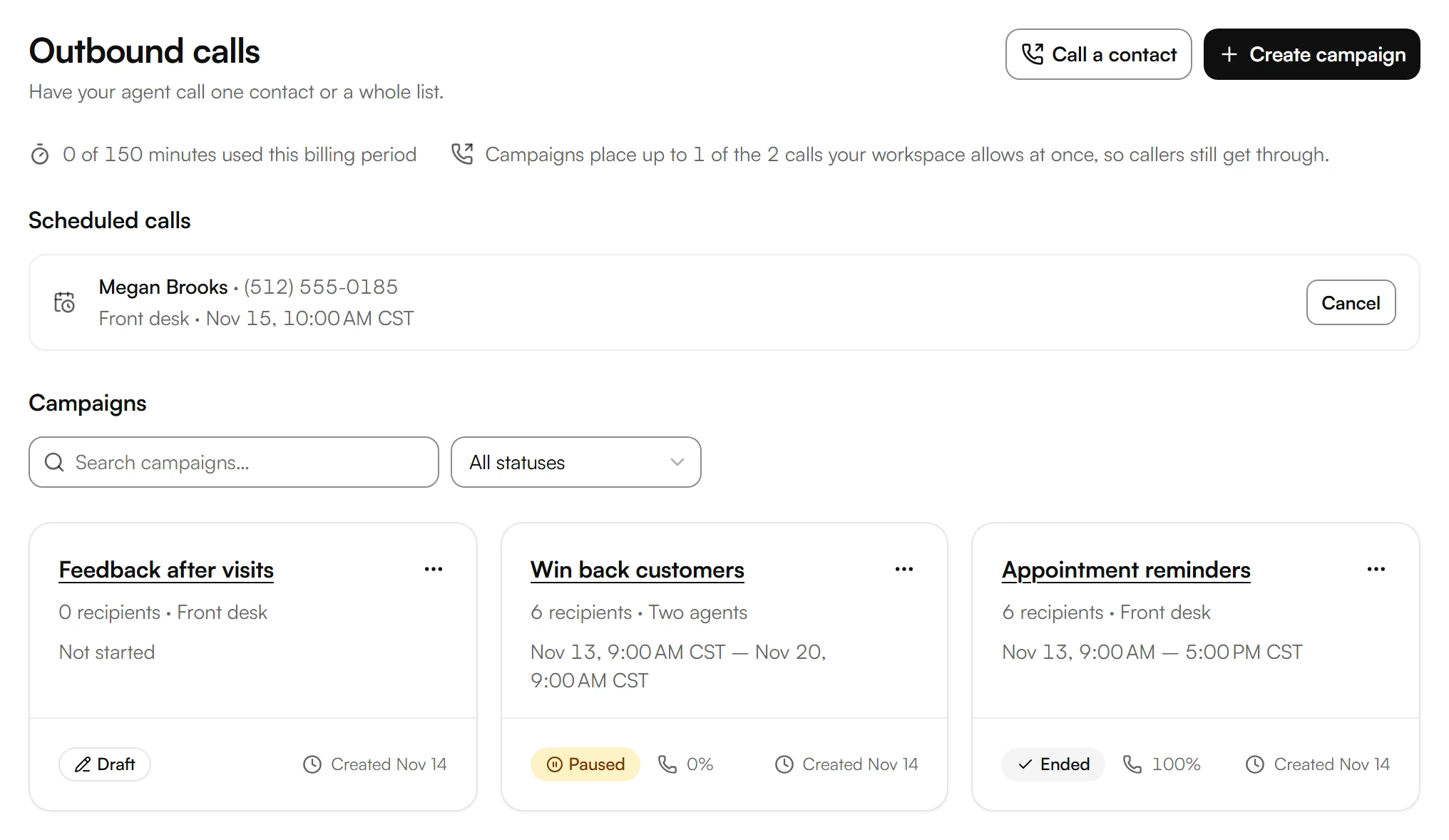
In your dashboard, open Outbound calls and choose Call a contact.
Enter the Phone number the way you would dial it. Under Name, you can add the person's name, so your agent greets them by name.
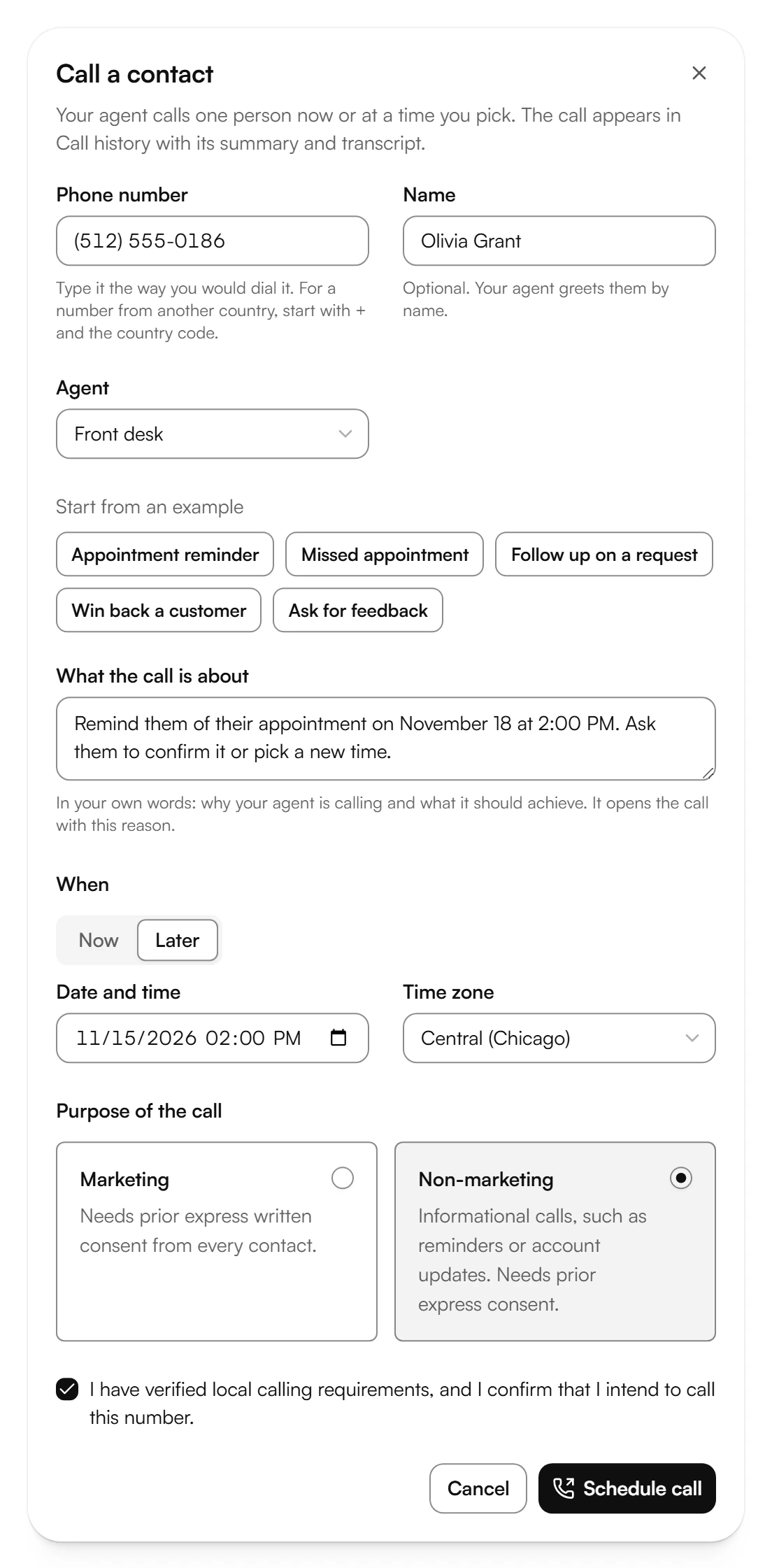
Choose the Agent. If your workspace has more than one number, choose under Call from which one the call comes from.
Under What the call is about, write in your own words why your agent is calling and what it should achieve. Your agent opens the call with this reason.
Under When, choose Now or Later. For Later, pick the Date and time and the Time zone, up to seven days ahead in steps of 15 minutes.
Under Purpose of the call, choose Marketing or Non-marketing. What each one needs is described in Consent and calling times.
For Marketing, also pick the Contact's time zone: the calling hours are checked in it. If your workspace has no National Do Not Call Registry download from the last 31 days for the number's area code, the window says so and the call can't be placed.
Check the box to confirm, then choose Call now or Schedule call.
If you call now, choose View call to follow the call. If you scheduled it, choose Done.
Start a call from elsewhere
The same window opens from these places too:
- Call history: open a call and choose Call back with agent.
- More → Contacts: open a contact and choose Call with agent.
- Phone numbers: open a number and choose Call a contact next to Who makes the calls. The call comes from this number.
See or cancel scheduled calls
In your dashboard, open Outbound calls. Scheduled calls lists each call that hasn't started yet, with the agent and the time.

To cancel a call, choose Cancel, then Cancel call. You can cancel it until it starts.
See how the call went
After the call, you find it in Call history with its summary and transcript. Each step is in Read calls, summaries and transcripts.
Place calls through the API
Your own software can place the same calls through our public API, with POST /v1/public/outbound-calls. These calls go through the same checks as a call from your dashboard, and they appear in your call history too. Owners, admins and developers can set this up.
In your dashboard, open More and choose Developers.
Choose Create API key and name the key. With Restrict key on, set Calls to Read and write. Then choose Create and copy the key.
Under API reference, choose Open. It lists every field, such as the number, the agent and the time of the call, and how to list and cancel scheduled calls.
A call placed through the API counts as confirmed with the same wording as the box in the window.
Was this helpful?
Related articles
Still have questions?
Write to us at support@kesru.com.