Run a campaign
Your agent calls a whole list of contacts, within the hours you set.
Checked
Set up the campaign
In your dashboard, open Outbound calls and choose Create campaign.
Under Details, enter a Campaign name. Only you see it.
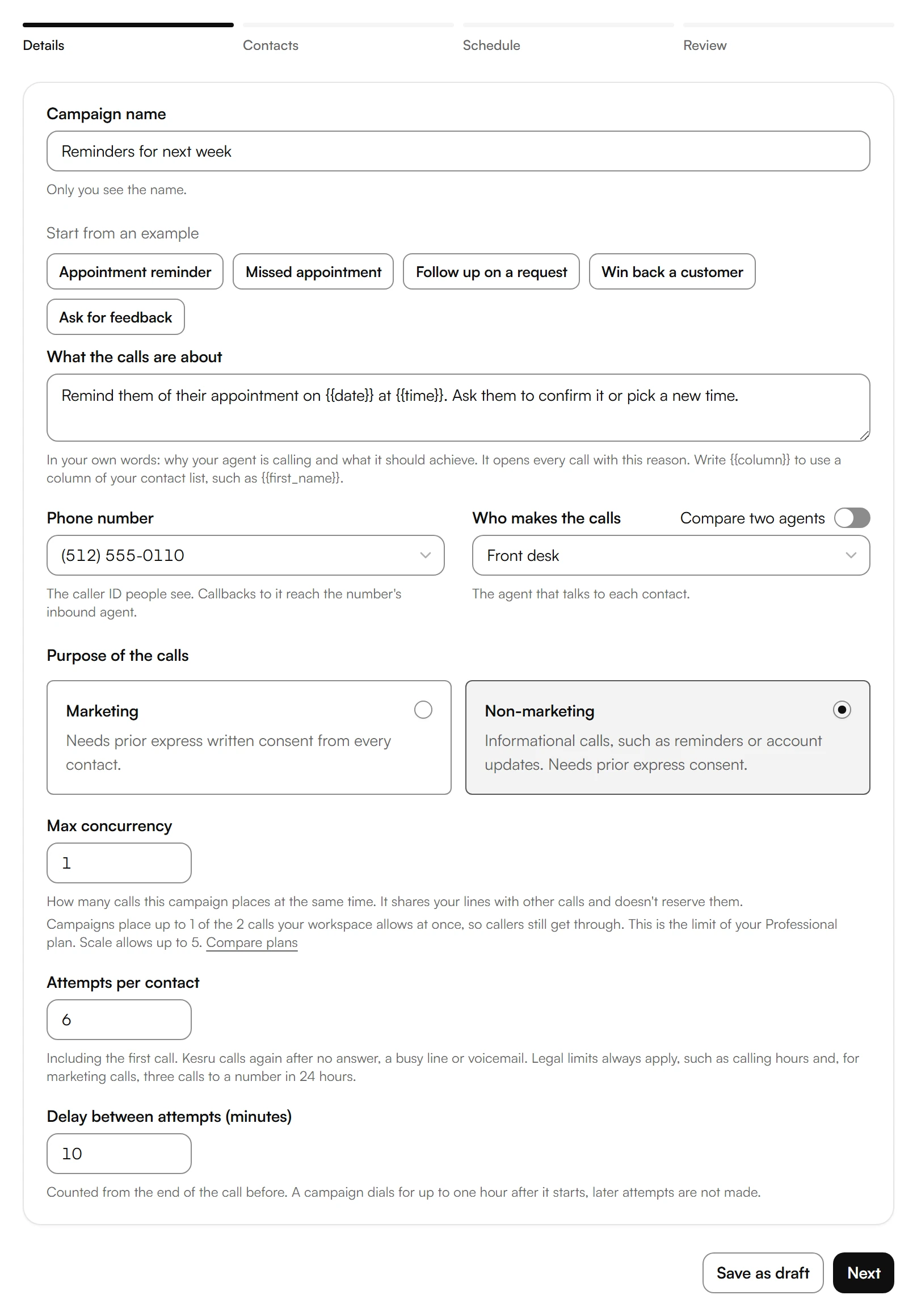
Under What the calls are about, write why your agent is calling and what it should achieve. To use a column of your contact list, write its name in double braces, such as {{first_name}}.
Choose the Phone number your contacts see and, under Who makes the calls, the agent.
Choose the Purpose of the calls: Marketing or Non-marketing.
Max concurrency sets how many calls the campaign places at the same time. It shares your lines with other calls.
Choose Next.
Call again if nobody answers
Also under Details, Attempts per contact sets how often Kesru tries a contact, including the first call. It calls again after no answer, a busy line or voicemail. Delay between attempts (minutes) counts from the end of the call before.
A campaign dials for up to one hour after it starts. Later attempts are not made.
Add your contacts
Under Contacts, choose CSV upload and pick your file. To type contacts in, choose Manual add.
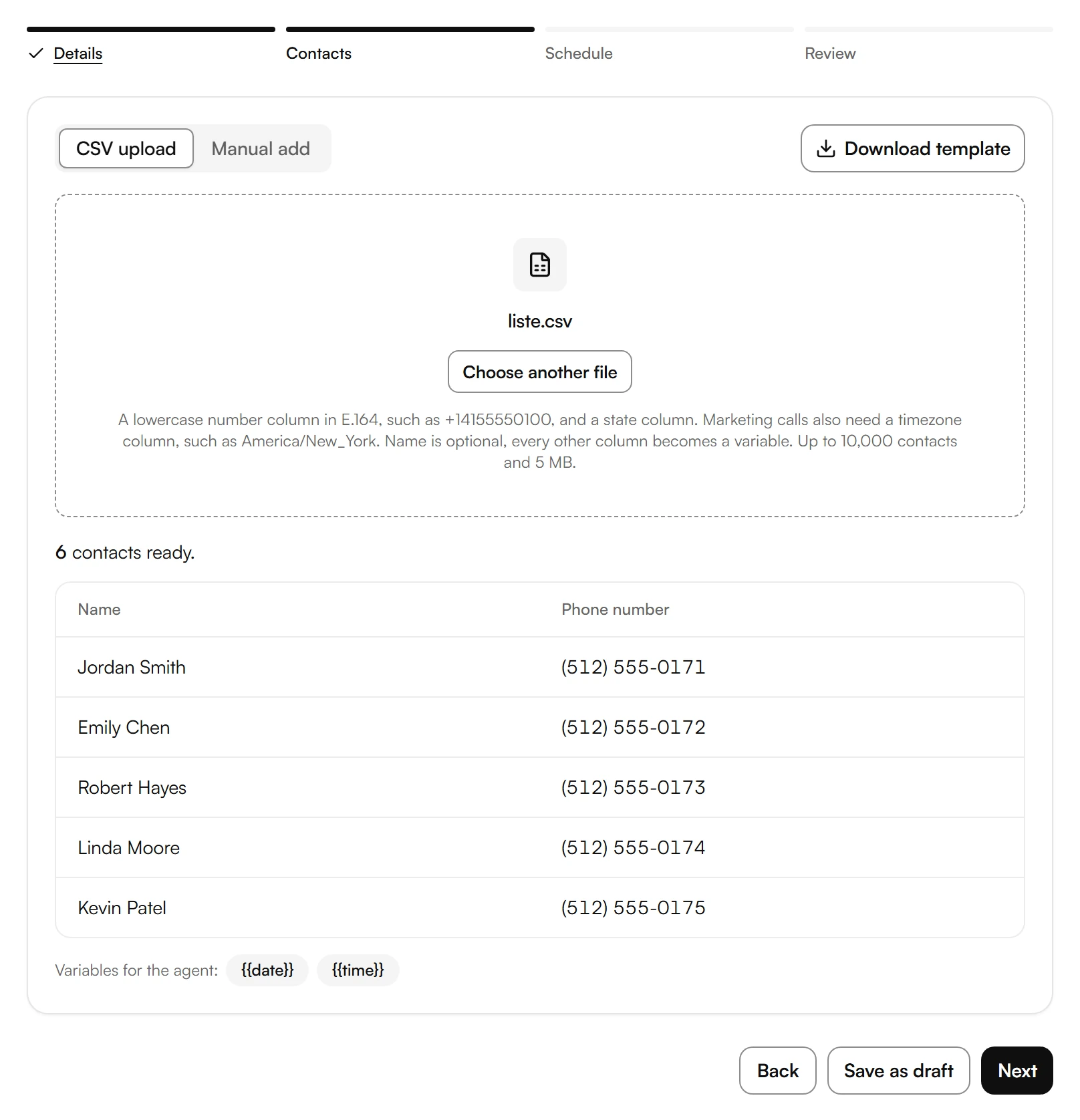
To start from the right columns, choose Download template.
Check the contacts and the variables Kesru found, then choose Next.
Your file has one row per contact and these columns:
- number: the phone number in E.164, such as +14155550100. Write the column name in lowercase.
- state: the contact's state as a two-letter code, such as TX.
- name: optional. Your agent greets the person by name.
- timezone: a named time zone such as America/Chicago. Required for marketing calls, optional otherwise.
Every other column becomes a variable. With the columns date and time, you can write: Remind them of their appointment on {{date}} at {{time}}. Each contact then hears their own date and time. A file holds up to 10,000 contacts and 5 MB.
Choose when it calls
Under Schedule, choose Send now or Schedule for later.
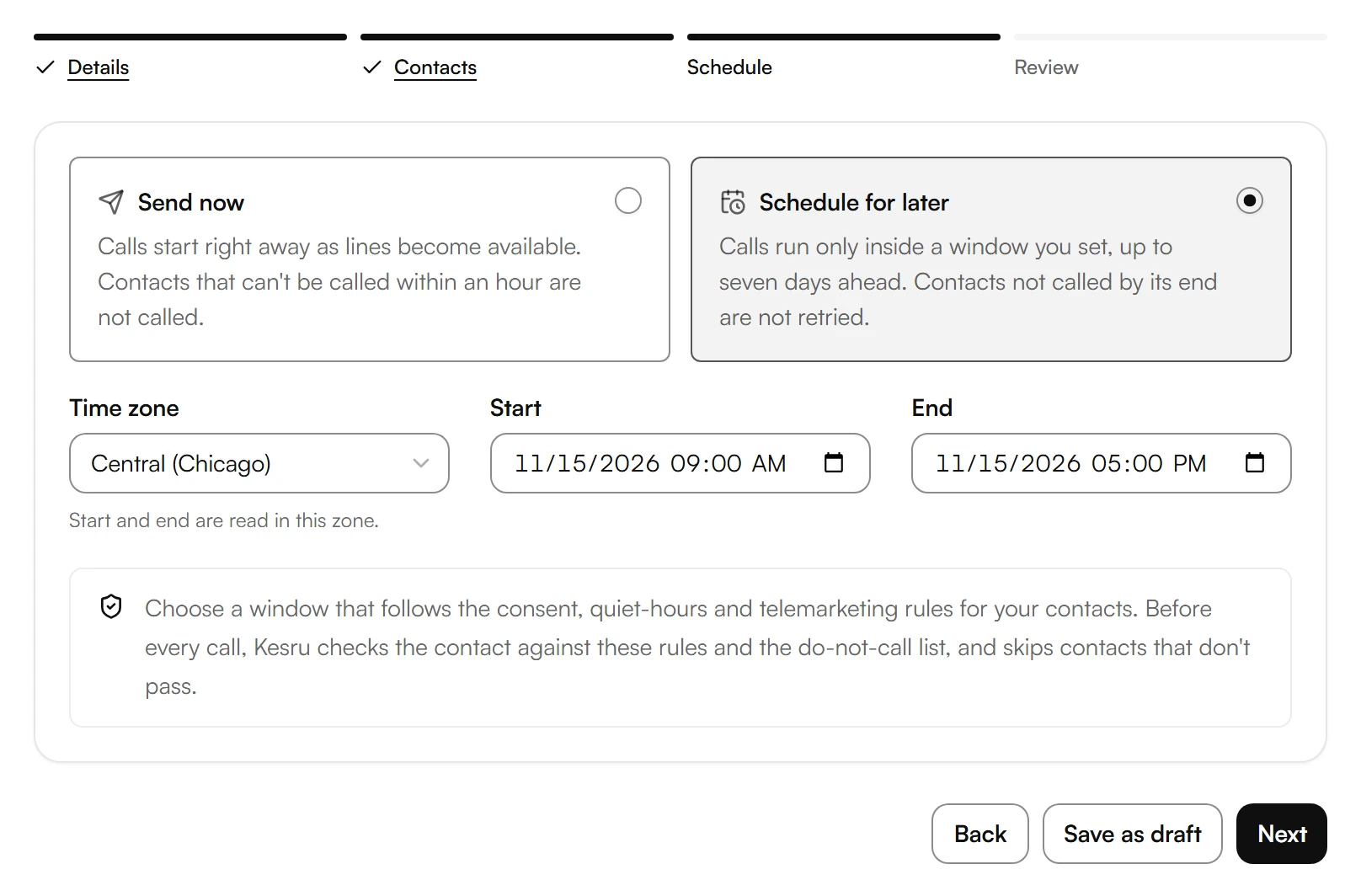
With Send now, calls start right away as lines become available. Contacts that can't be called within an hour are not called.
With Schedule for later, choose the Time zone, Start and End, up to seven days ahead. Calls run only inside this window. Contacts not called by its end are not retried.
Choose Next.
Check and launch
Under Review, check your settings.
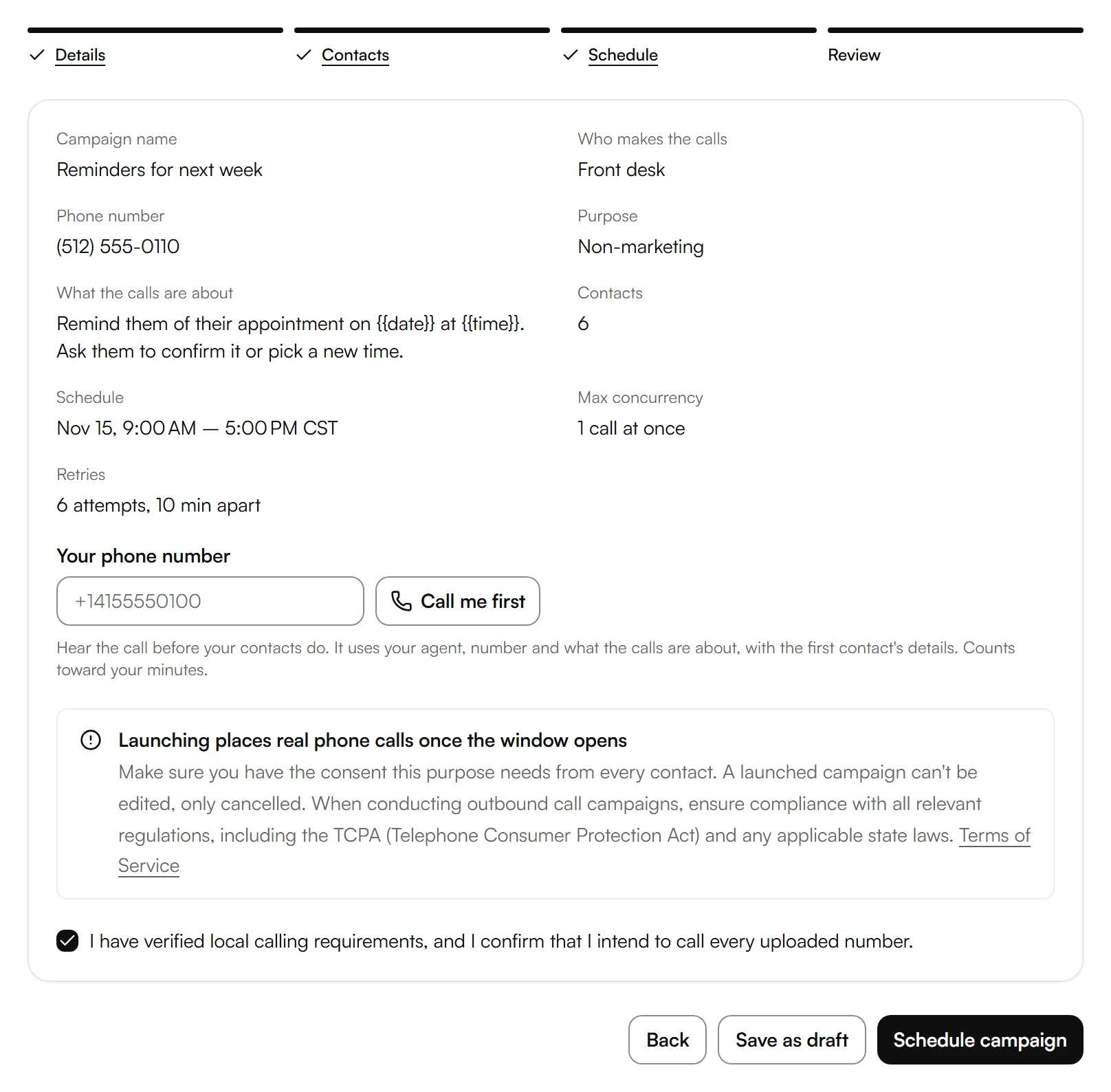
To hear the call before your contacts do, enter Your phone number and choose Call me first. Your agent calls you with the first contact's details. This call counts toward your minutes.
Check the box to confirm, then choose Launch campaign. For a later window, the button reads Schedule campaign.
For marketing calls, Review shows how many contacts would be skipped and why, such as a missing time zone or no National Do Not Call Registry download for the area code. If no contact can be called, the campaign can't be launched.
To finish later, choose Save as draft. A draft makes no calls until you launch it. To change it, open it and choose Edit. To remove it, choose Delete draft.
Launching places real phone calls. A launched campaign can't be edited, only canceled.
Compare two agents
Under Details, turn on Compare two agents next to Who makes the calls.
Choose the second agent and a Weight for each. The weights must total 100%. You can choose published agents only.
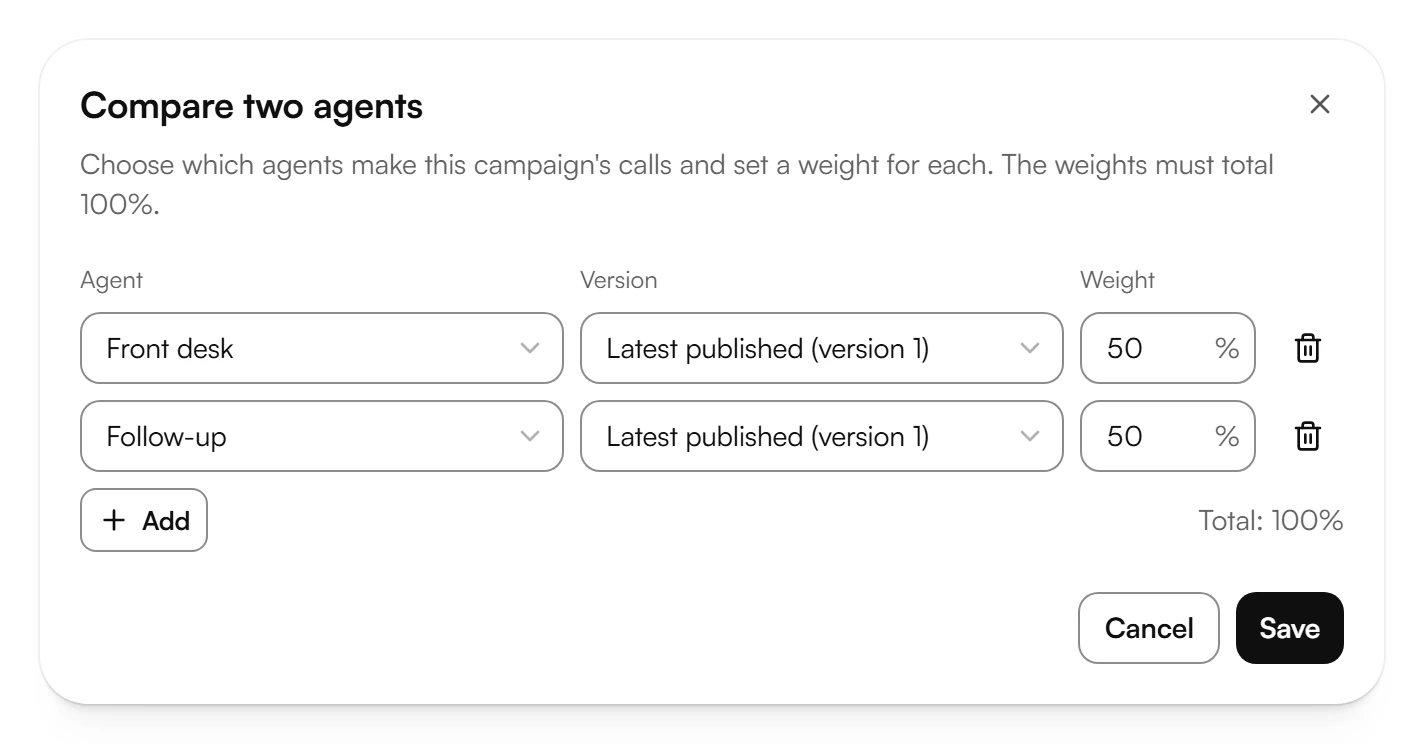
Choose Save.
Once calls are made, the campaign's page shows under Comparing the two agents how each agent is doing.
Pause, resume or cancel
Open a campaign in Outbound calls. Its buttons depend on its status:
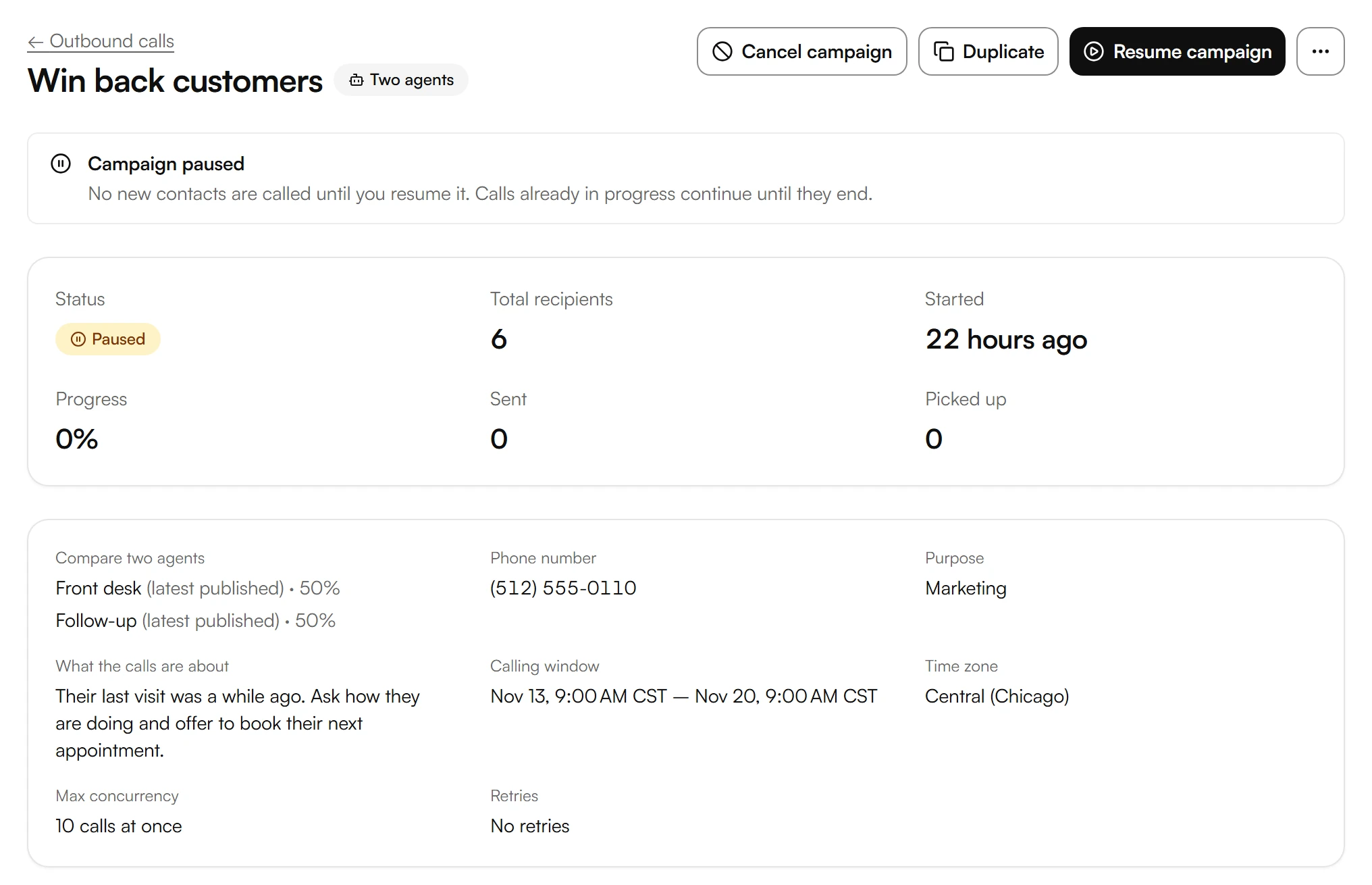
- Pause, then Pause campaign: no new contacts are called. Calls already in progress continue until they end.
- Resume campaign: calling continues.
- Cancel campaign: stops the campaign for good. To call the same contacts again, duplicate it.
- Duplicate: starts a new campaign with the same settings. You can change them before you launch it.
- Retry failed calls, then Start retry: once a campaign is over, a new campaign calls every contact whose call was busy, unanswered, failed or not placed before the calling window ended. Skipped contacts and do-not-call requests are never called again.
- Archive in the menu with the three dots: the campaign moves out of your list. Its contacts and results are kept.
Read the results
Open a campaign. At the top, you see Total recipients, Progress, Sent and Picked up.
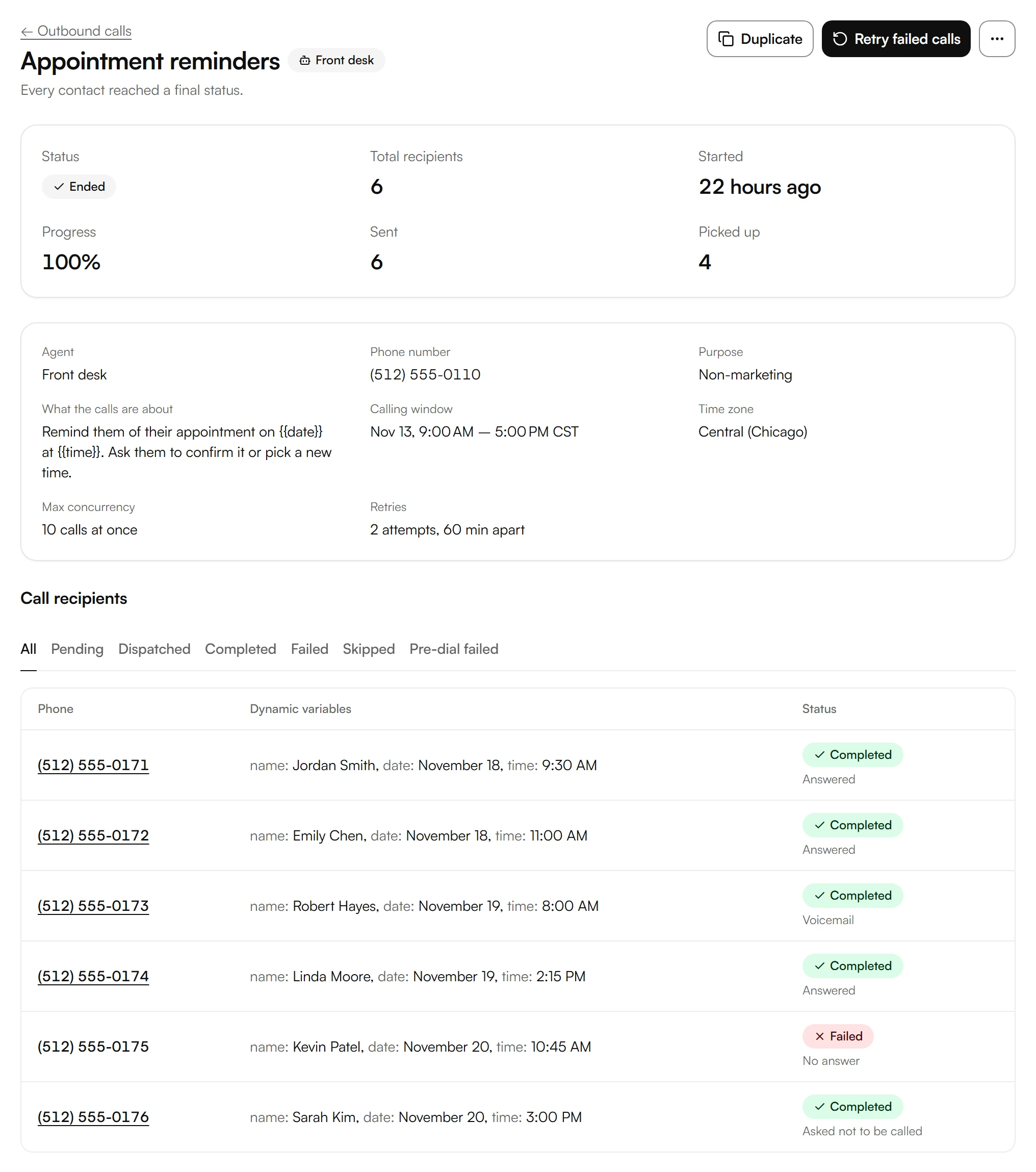
Under Call recipients, each contact shows its status and the outcome, such as Answered, Voicemail or Asked not to be called. To filter, choose a tab such as Failed or Skipped.
Choose a number to open the call with its summary and transcript.
Was this helpful?
Related articles
Still have questions?
Write to us at support@kesru.com.