Read calls, summaries and transcripts
Every call your agent handles lands in your call history, with a summary, the details it took and the whole conversation.
Checked
Find a call
In your dashboard, open Call history.
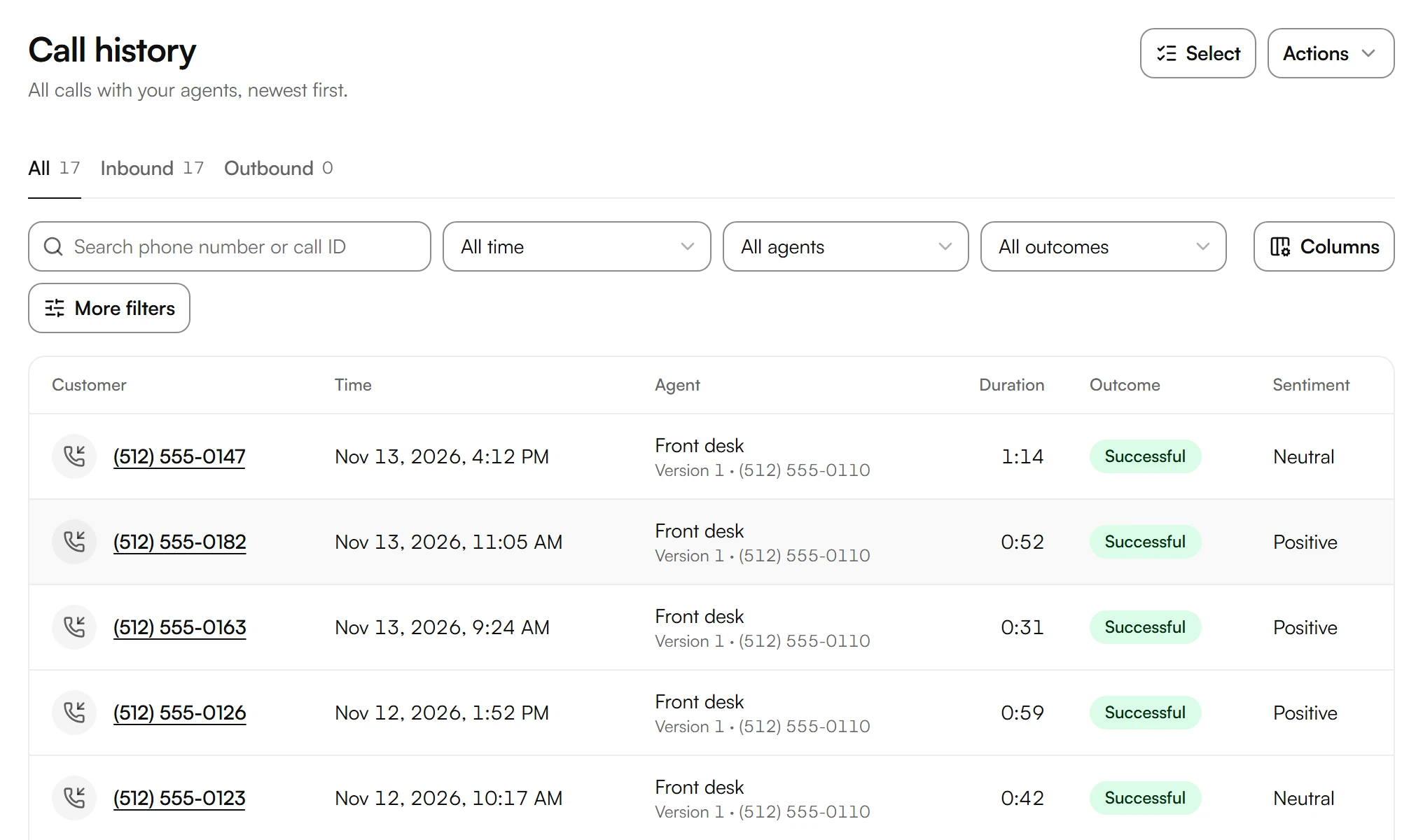
To see only one direction, choose Inbound or Outbound. All shows both.
To find a caller, search by phone number or call ID. To narrow the list, use All time, All agents, All outcomes and More filters.
To show or hide columns, choose Columns.
Choose a call to open it.
Read a call
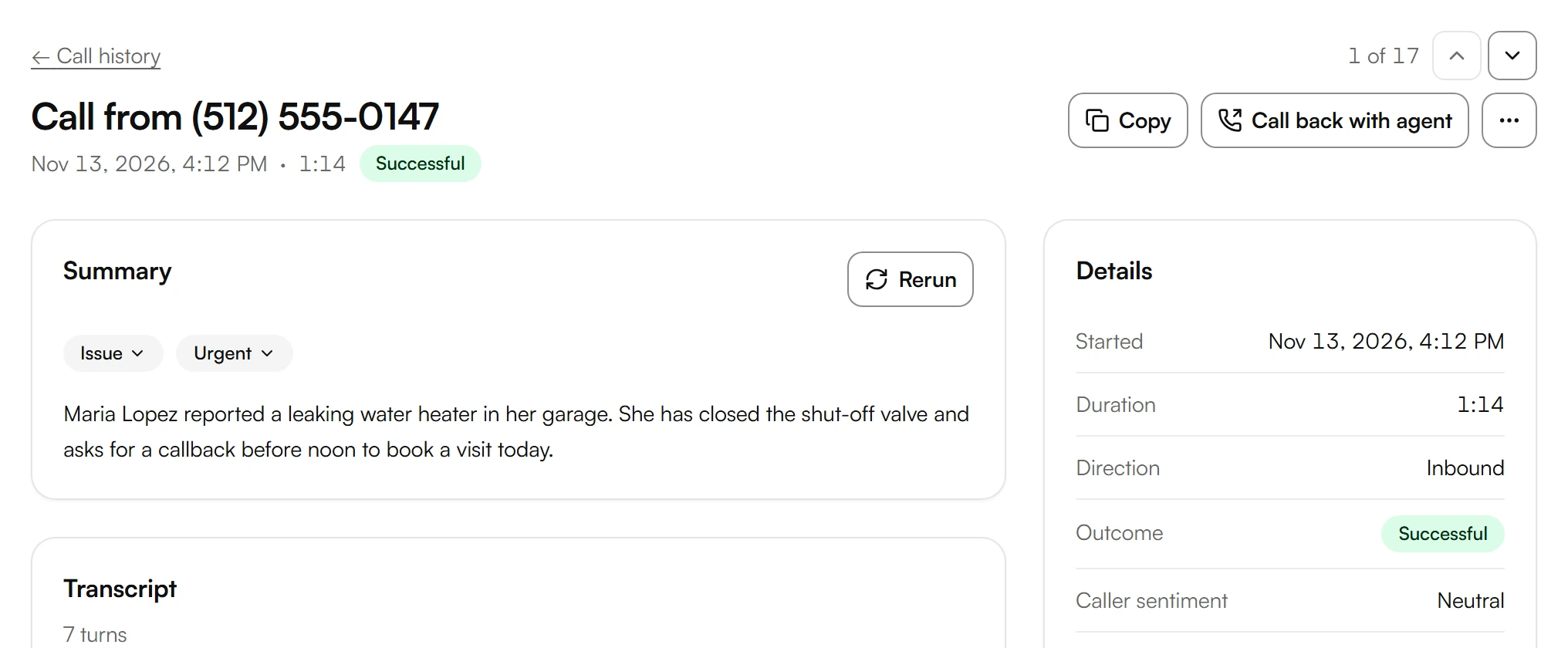
At the top, you see who called, when, how long the call took and its outcome. Under Summary, Kesru sums up the call in a few sentences. Details lists the agent, its version, the numbers and the caller's mood.
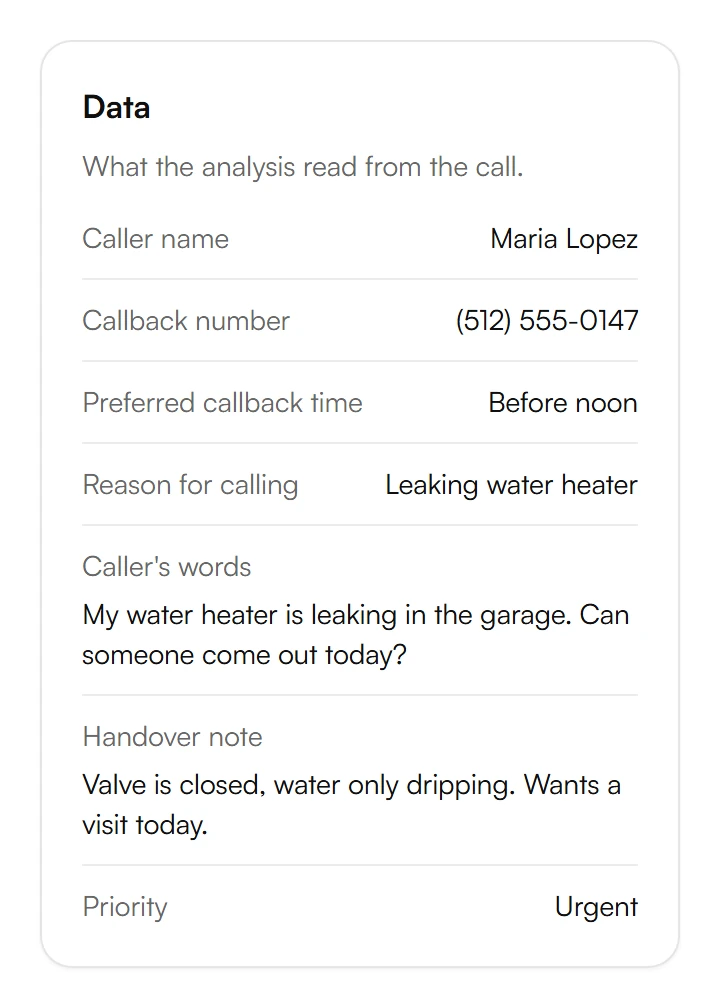
Under Data, you find what the analysis read from the call, such as the caller's name, the callback number and the reason for calling.
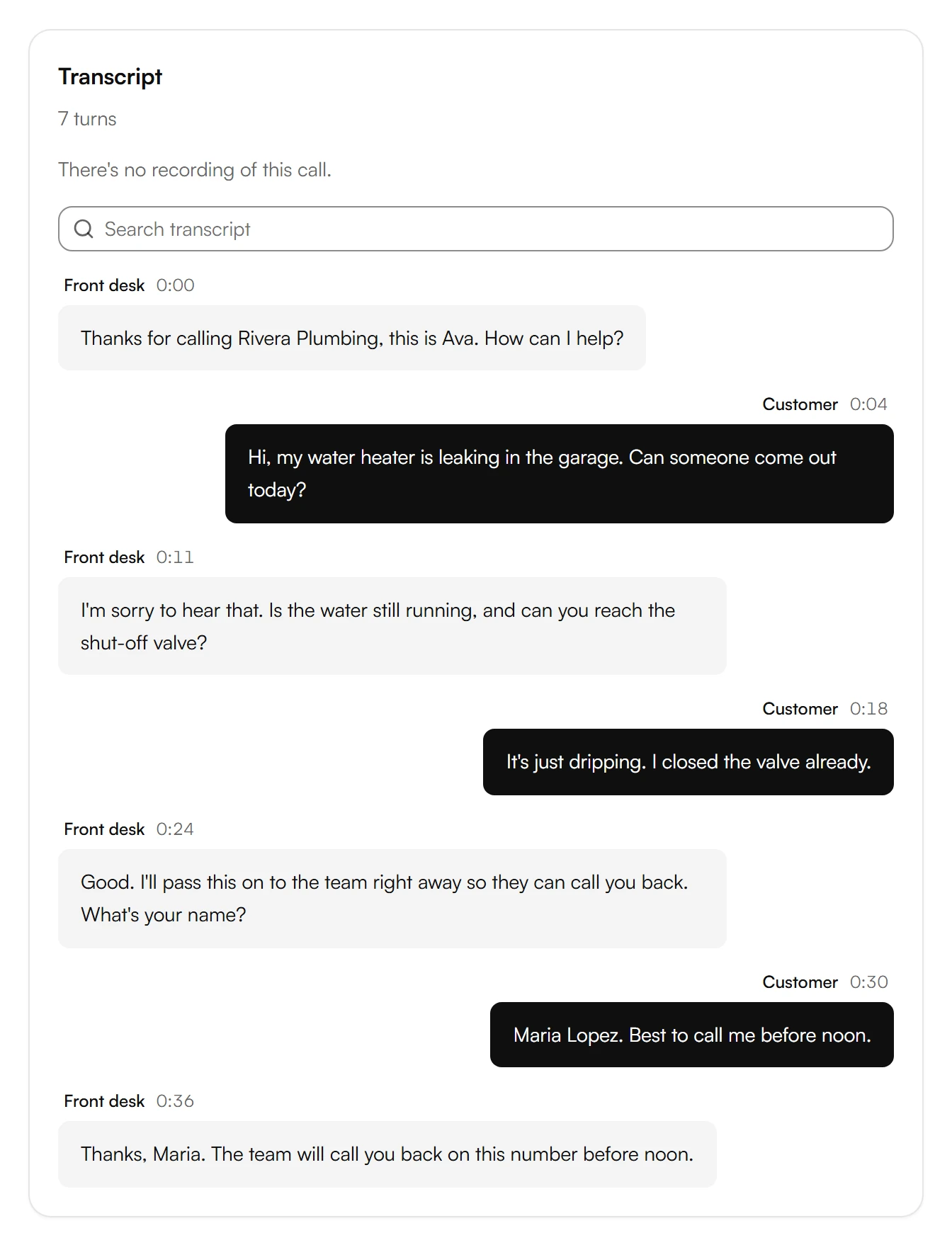
Under Transcript, you read the whole conversation, turn by turn with the time. To find a word, use Search transcript.
If Audio recording is on for your agent (How it works → Advanced), you can play the recording above the transcript.
Act on a call
- Call back with agent: your agent calls the customer back.
- Copy: copies the Call ID, the Link to this call or the Transcript.
- More actions → Always route to me: adds the number to your agent's VIP callers, so its calls reach a person first.
- More actions → Block number, then Block: calls from this number are rejected. You lift the block under More → Spam filters.
- Add to contacts: saves the caller as a contact.
To download calls as a spreadsheet, choose Actions → Export CSV in your call history.
Was this helpful?
Related articles
Still have questions?
Write to us at support@kesru.com.